


Capturing Snapshots / Recording in Real Time
Capture screenshots to save evidence of events that have been caught on your camera.
- Open the Lorex Cirrus App.
- In the home page, tap Snapshot / Record
 to take a screenshot / start a recording.
 - Tap Record again to stop the recording.
Capturing Snapshots / Recording of a Past Event
- Open the Lorex Cirrus App.
- Tap
 , then tap Notifications.
 - Select the event you want to take a snapshot / recording of.
- Tap Snapshot / Record
 to take a screenshot / start a recording.
 - Tap Record again to stop the recording.
If you saved videos or snapshots using the app, you can access them in the Snapshots and Recordings menu.
Accessing Saved Snapshots & Recordings
- Tap
 , then tap Snapshots or Recordings.
 - Tap a device name to view the saved snapshots or recordings. Snapshots and recordings are sorted by date.
- Tap on your device, then on the specific snapshot or recording to view it.
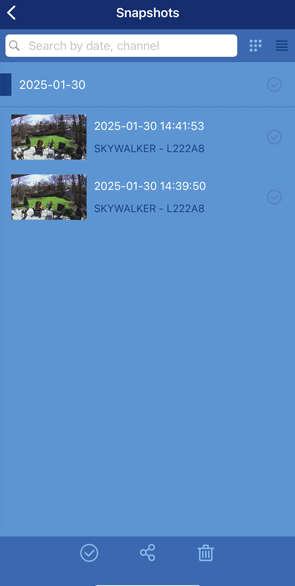
Snapshot and Recording Controls
- Search Bar: Tap to search for a snapshot by day or channel.
- Snapshot List: Tap to view all available snapshots and recordings.
- Select All: Tap to select all snapshots or recordings.
- Share: Tap to share selected snapshots or recordings. Here you can choose to share through email, through text, or to save the video to your phone.
- Delete: Tap to delete snapshots or recordings.
- Single Checkbox: Tap to select a single snapshot or recording.
- Layout Type: Tap to toggle between grid view and list view for easier browsing.
Viewing a Single Snapshot or Recording
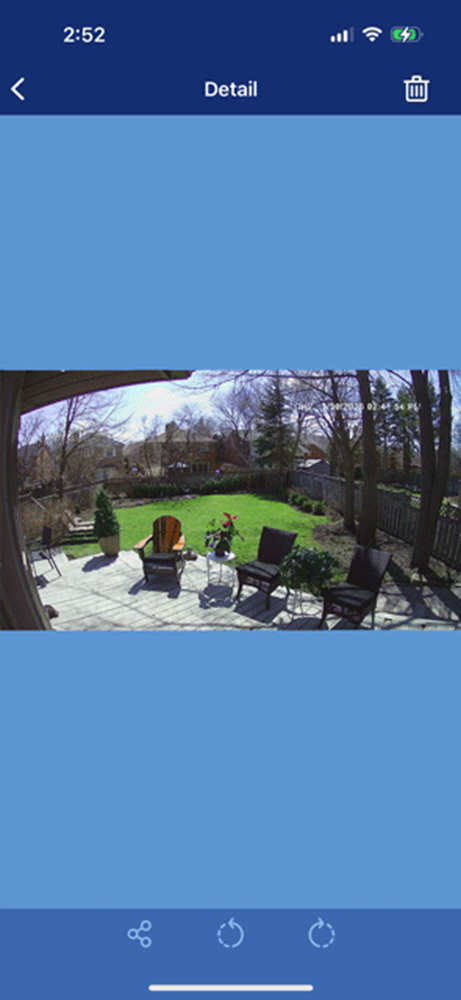
- Display Area: Displays the selected snapshot or recording. (Tap recordings to play.)
- Share: Tap to export or share the snapshot / recording.
- Rotate Counter-clockwise (Snapshots only) – Rotates the image 90º to the left.
- Rotate Clockwise (Snapshots only) – Rotates the image 90º to the right.
- Delete: Tap to delete the snapshot or recording.