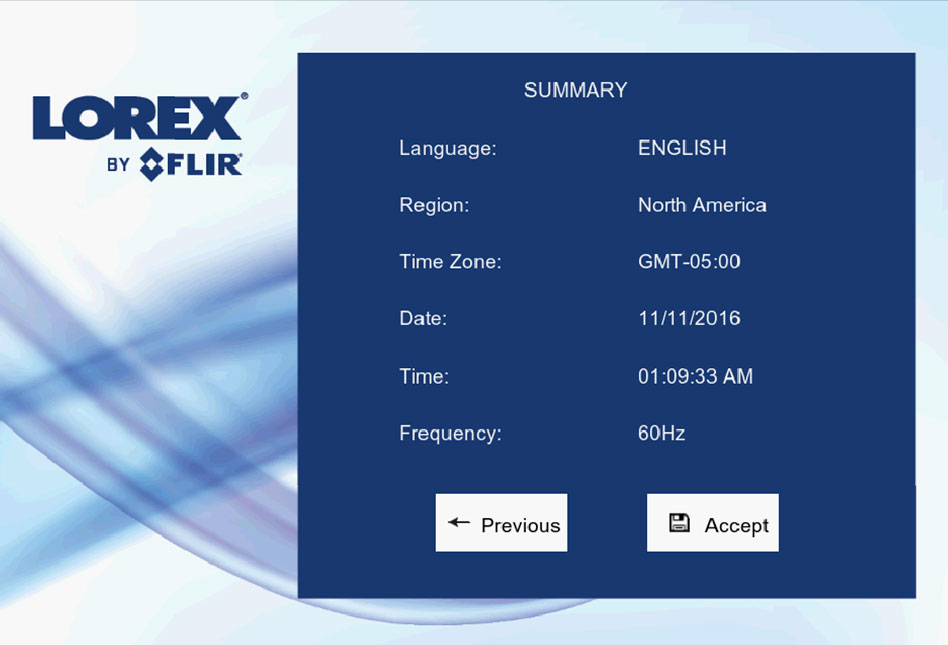
Once you have completed setting up your LHB Series DVR and have connected it to a monitor, you must use the DVR Setup Wizard to configure required settings.
Prerequisites:
- Complete the set up of your LHB Series DVR system and ensure it is connected to a monitor (not included) and a mouse (included).
To complete the setup wizard:
- Using your mouse and connected monitor, log in to your system using the default username and password. Refer to your user manual for your default username and password.
-
Click Next to begin the setup wizard.

-
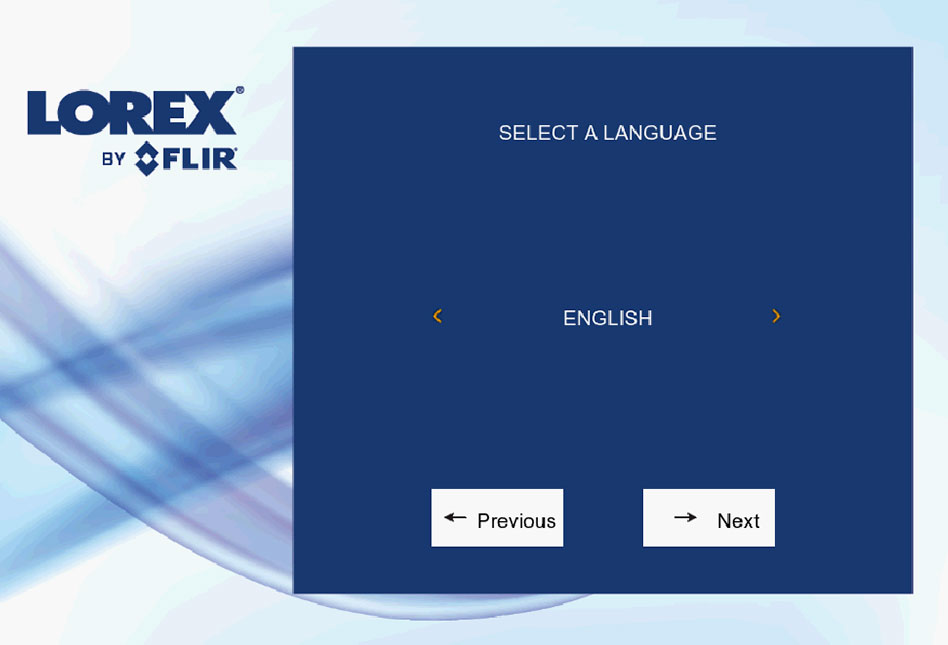
Click the Arrow icon to select a language for the On-Screen Display (OSD) and then click Next to confirm.
-
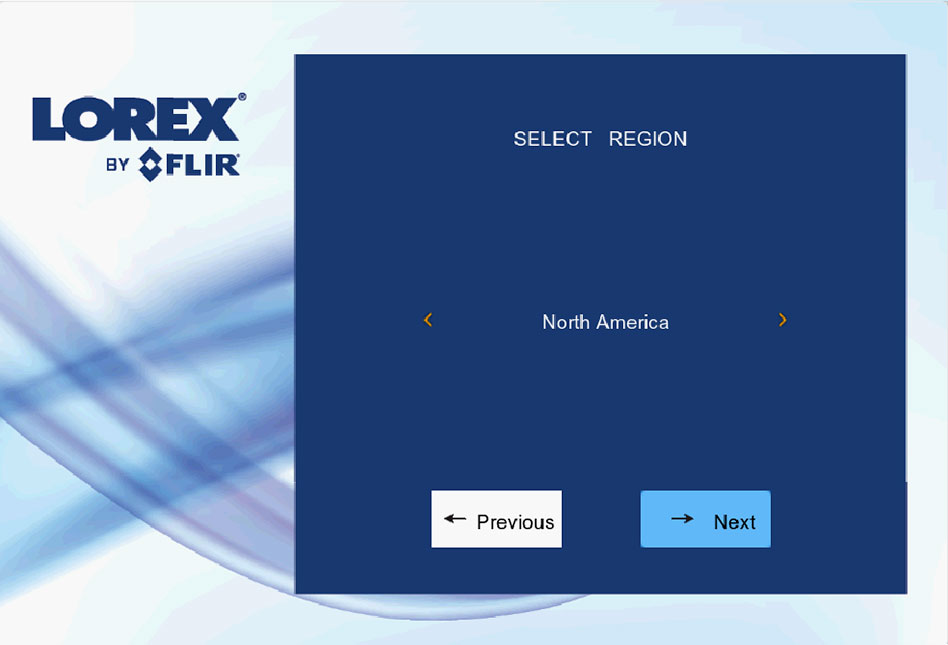
Click the Arrow icon to select your region and then click Next to confirm.
-
Configure your DVR date and time:
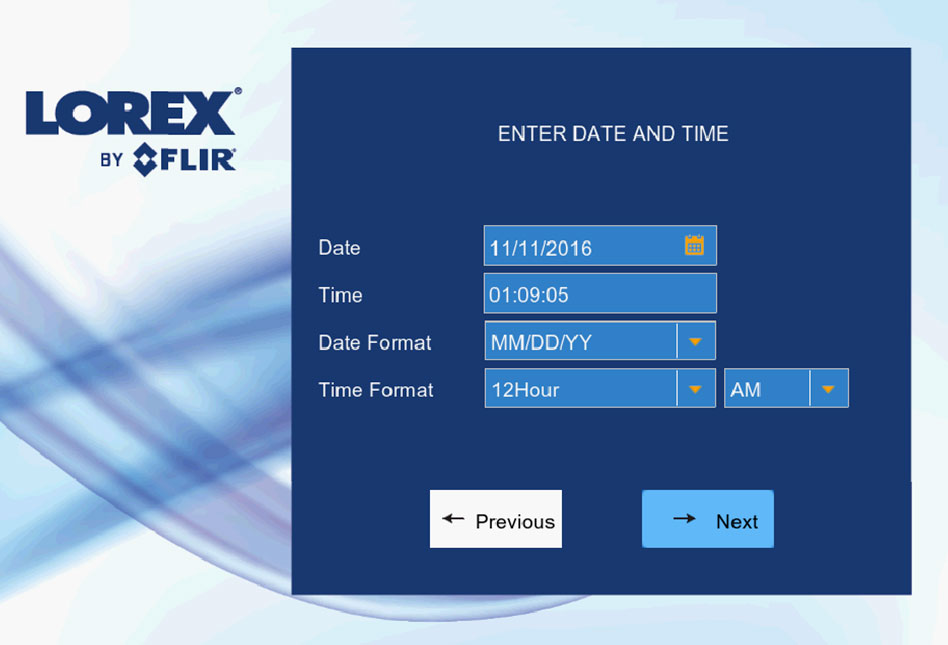
- Click the Date icon to select the correct date from the calendar.
- Click the Time drop-down menu to select a time zone.
- Click the Date Format drop-down menu to select a date format.
-
Click the Time Format drop-down menu to select a time format.
REMINDER: For the 12Hour format, select either AM or PM from the drop-down menu.
-
Click Next to confirm.
-
Click Accept to confirm your DVR settings.