


This article provides instructions for installing the IC501 2K Indoor Wi-Fi Camera.
Note: The screenshots in this guide are for illustration purposes only. The look of the Lorex Connect app may vary slightly depending on your device, app version, or operating system.
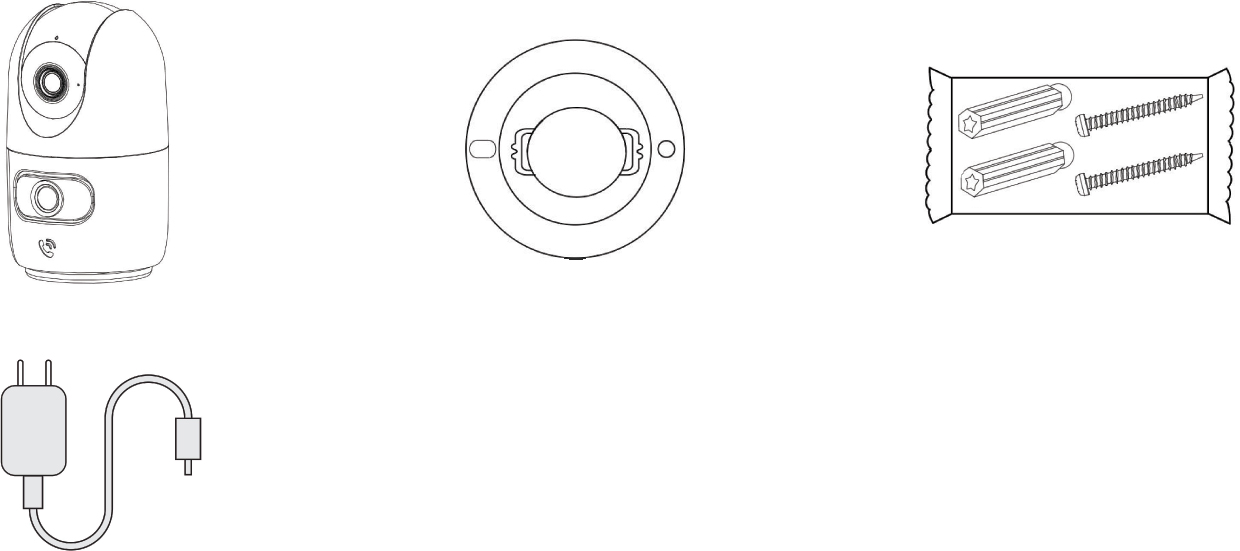
What's Included:
- 2K Dual Lens Indoor Wi-Fi Camera
- Mounting Bracket
- Screws and Anchors (2x)
- Power Cable and Power Supply Block
LED Indicators:

Connect to the Lorex Connect App:

Download the Lorex Connect App from the App Store (iOS) or Google Play (Android). If you already have the app, ensure it’s up to date.
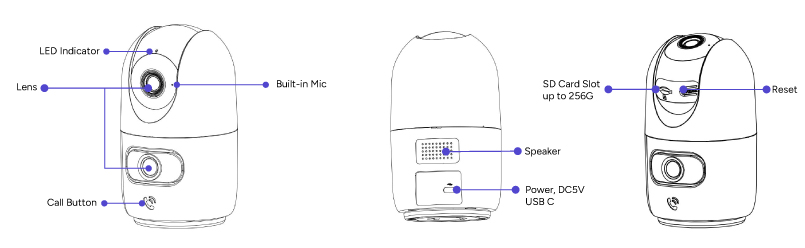
Camera Overview:
Installation:
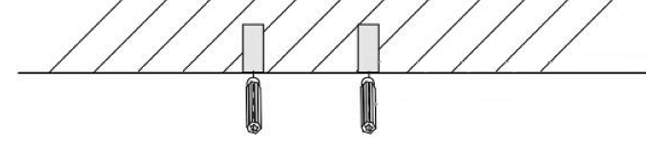
- If using the mounting bracket (if not, place your camera in the desired location and skip to step 4), use your mounting bracket to mark where you would like to install your camera.
- Install anchors into the surface.
- Screw in the mounting bracket.
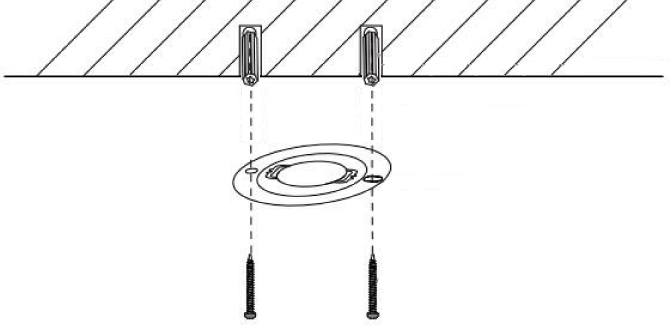
- Twist your camera into place to secure it to the mounting bracket.
Note: This base is flexible and allows you to rotate your camera.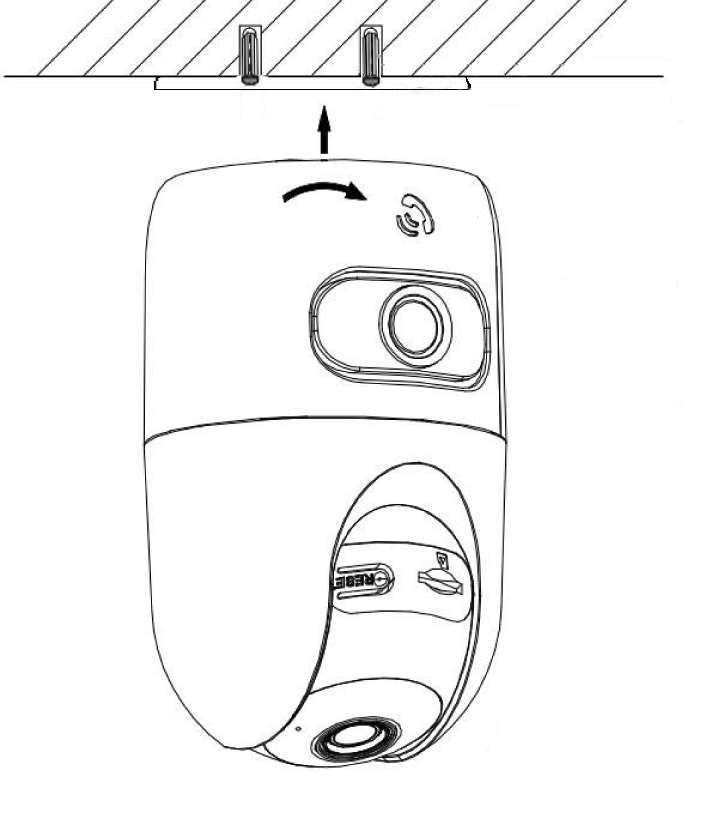
- Plug your camera into the power cable.
- Plug your cable in to the power supply block.
- Plug the power supply block into the wall.
- Onboard your camera.
Onboarding:
Onboarding your camera will connect it to your phone via the Lorex Connect App so that you can control settings and view the recordings.
- Launch the Lorex Connect App. In the top right corner of the My Home tab, tap the
 icon.
icon.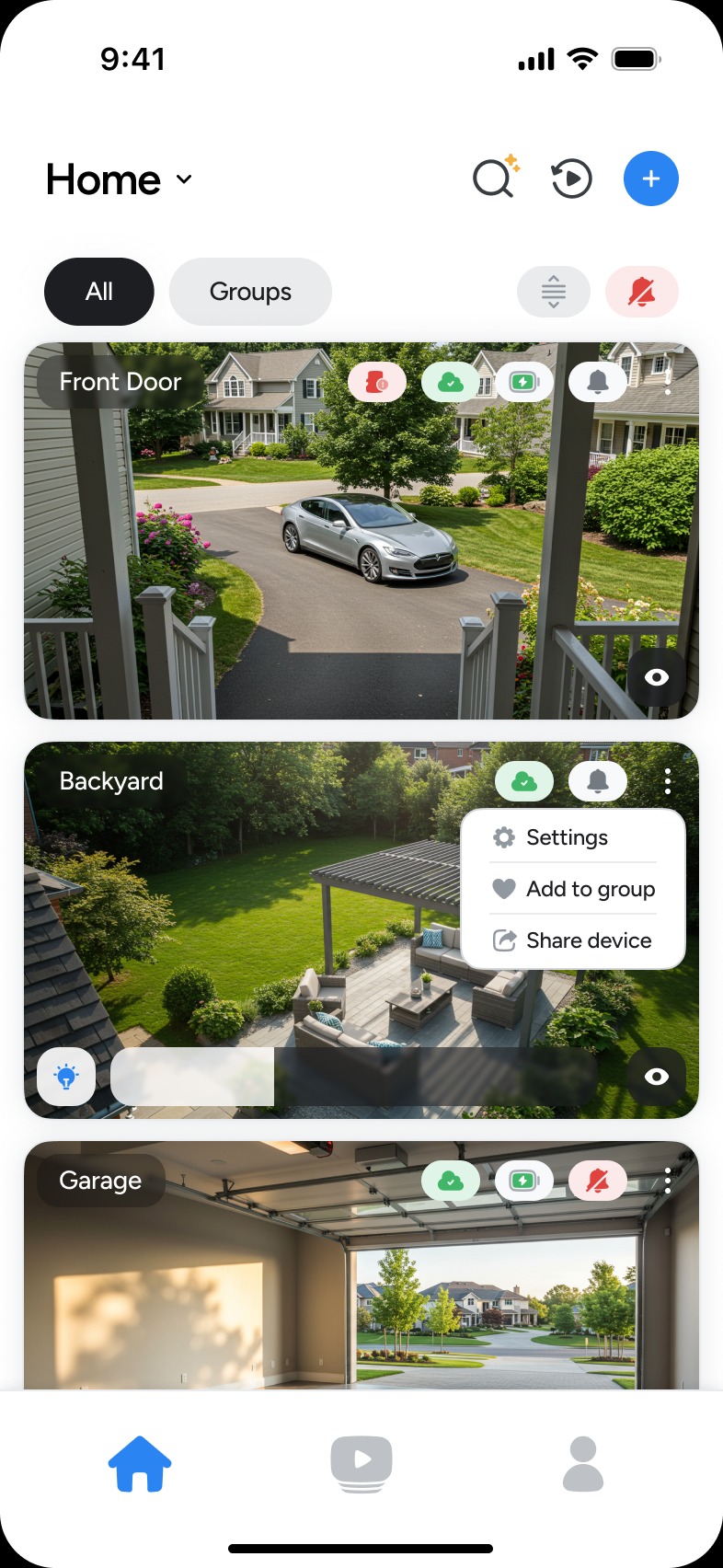
- If you have an IOS device, tap Add a device. For Android devices, your app will skip this step for you.
- In the list of devices, tap your IC501 camera.
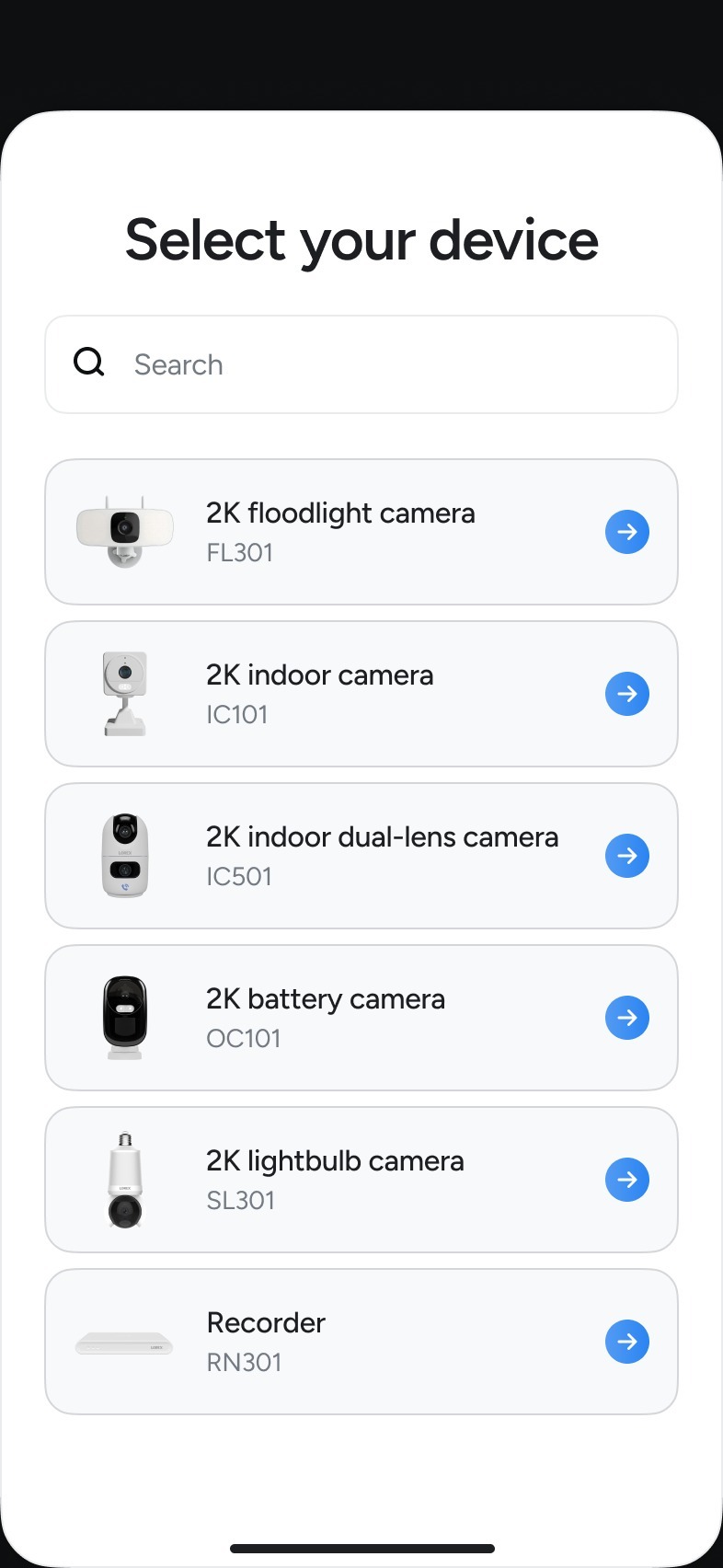
- Scroll through the instructions, and tap Continue > Add this device.
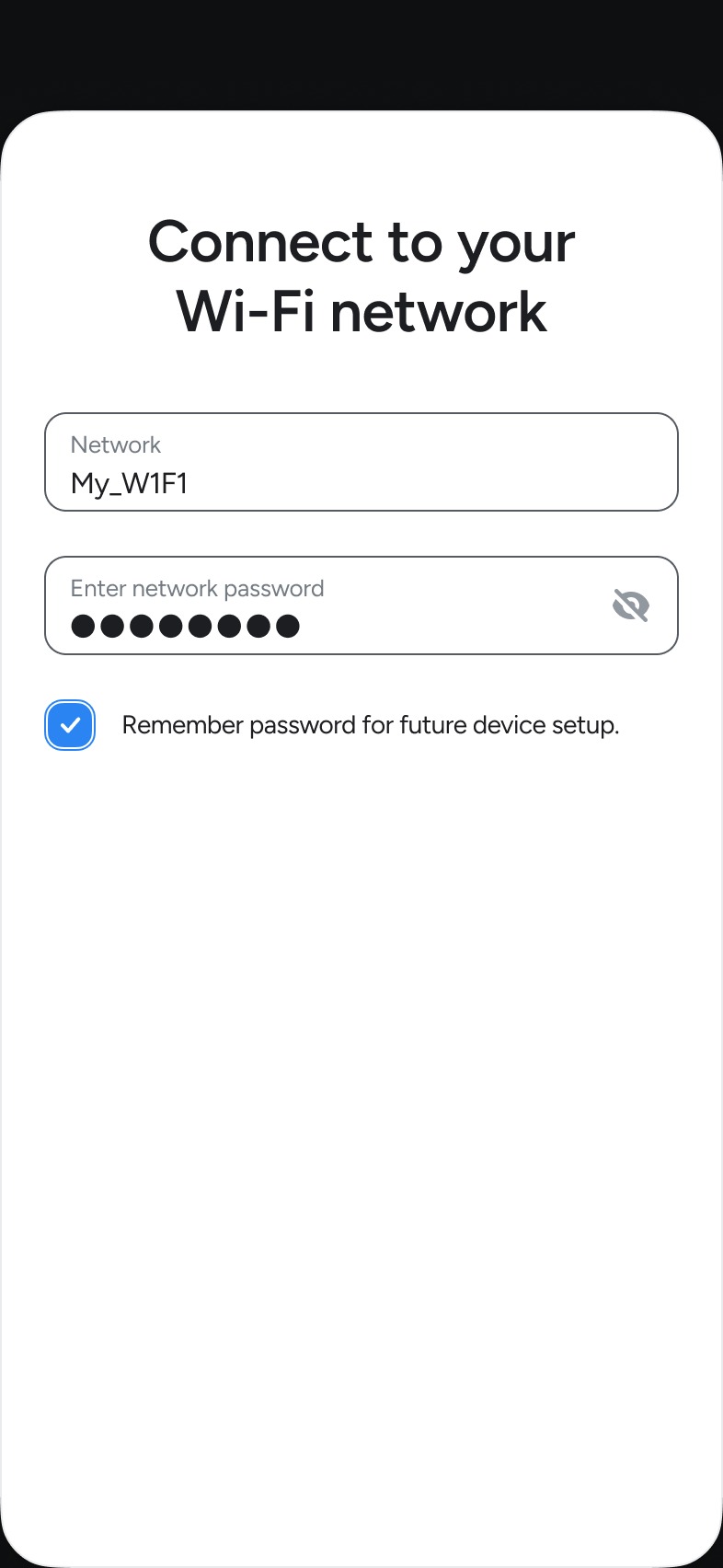
- Choose your Wi-Fi from the list of networks or tap Rescan again.
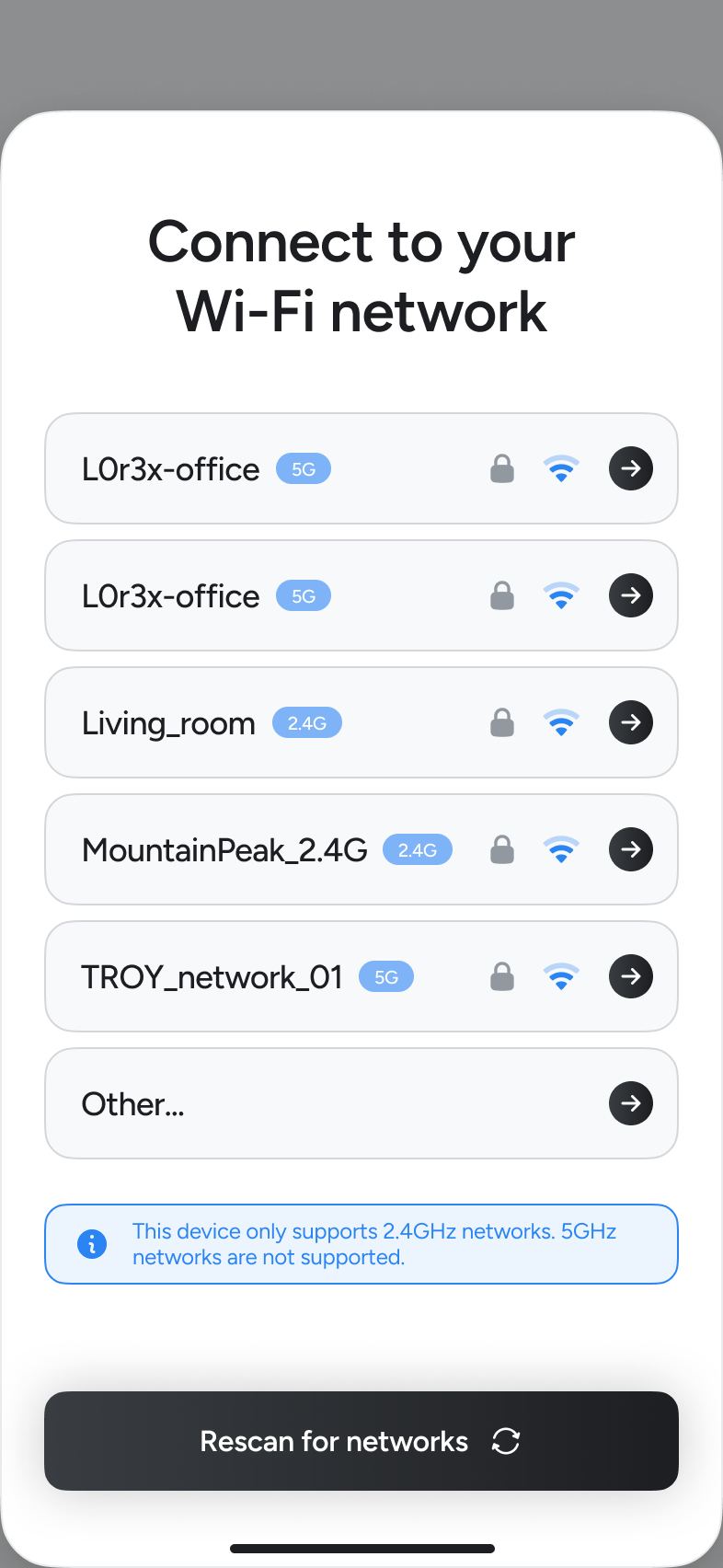
- Input your Wi-Fi password and tap Continue.
- Name your camera and tap Continue.
- Finish onboarding and tap Let's Go!
- Once you onboard your device you must set the time. Tap your camera's thumbnail >
 Icon > Camera Settings > Time Settings > and select your time zone.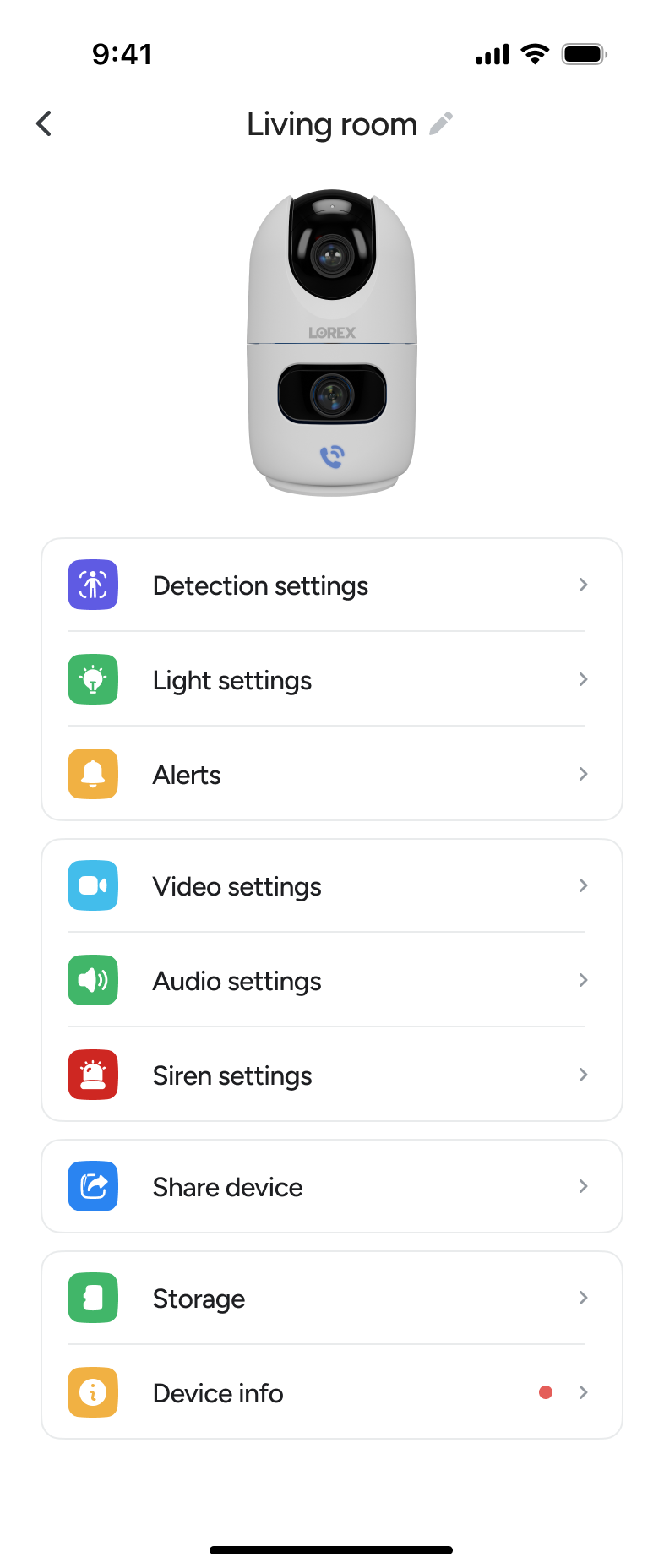
- Tap Save to confirm.