


This article provides instructions to setup push notification setting with your 4K NVR & Battery-Operated Camera system (L8559 Series). with the help of Lorex Cirrus app.
You can set push notifications to appear on your phone when your cameras detects motion, video loss, or low battery (wire-free cameras only).
 Important: Your devices must have push notifications enabled and motion detection configured to receive motion detection notifications.
To enable push notifications
Launch the Lorex Cirrus app.
Tap
 , then tap Notifications.
Tap
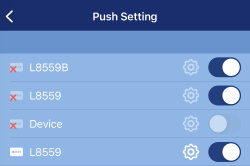
 to configure the push notifications settings.
Tap
 to enable push notifications for a specific device.
-
Once enabled, tap the settings icon.
-
Configure the following notification settings as needed:
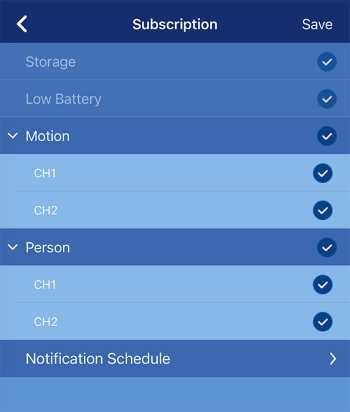
- Storage notification (always enabled by default).
- Low Battery notification (always enabled by default).
- Motion detection notification: Tap the drop-down arrow to enable / disable notifications for each channel.
- Person detection notification: Tap the drop-down arrow to enable / disable notifications for each channel.
- Notification Schedule: Tap to configure when you want notifications enabled.
To disable push notifications
Launch the Lorex Cirrus app.
Tap
to configure the push notifications settings.Tap
 to disable push notifications for a specific device.