


You can set push notifications to appear on your phone when your cameras detect motion, video loss, or low battery (wire-free cameras only).
 Important: Your devices must have push notifications enabled, and motion detection configured to receive motion detection notifications. See the article Lorex Cirrus app - Configuring settings, for more information about motion detection settings.
Enabling Push Notifications:
- Tap
 , then tap Notifications.
 -
Tap the Settings Button
 to configure the push notifications settings.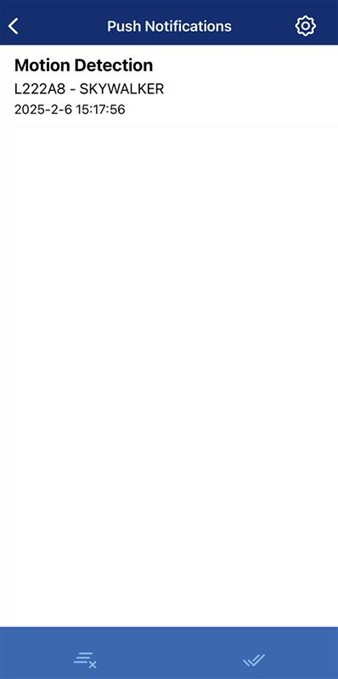
-
Tap
 to enable push notifications for a specific device.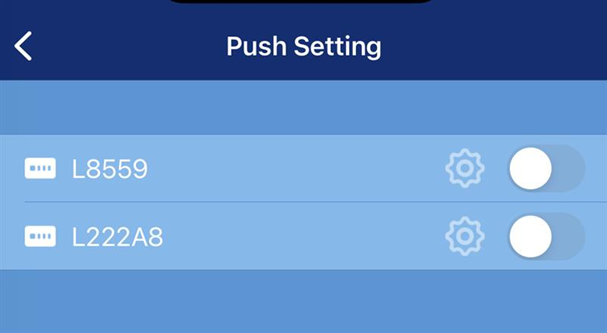
Once enabled, tap the settings icon.
-
Configure the following notification options:
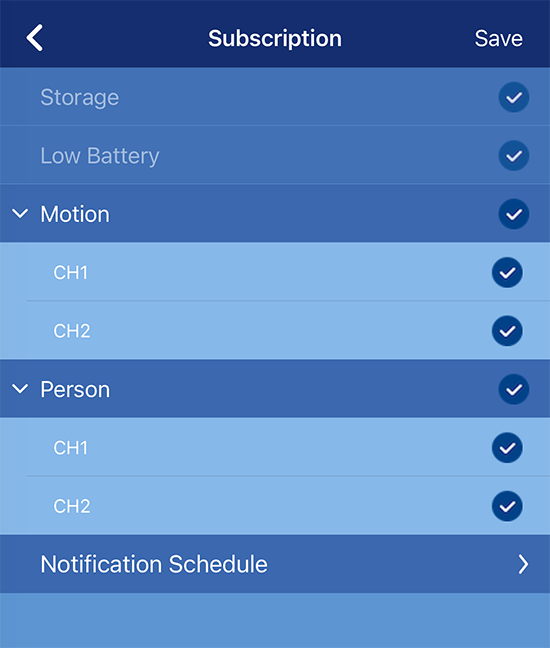
- Storage notification (always enabled by default).
- Low Battery notification (always enabled by default).
- Motion detection notification: Tap the drop-down arrow to enable / disable notifications for each channel.
- Person detection notification: Tap the drop-down arrow to enable / disable notifications for each channel.
- Notification Schedule: Tap to set specific times for notifications.
Setting Up a Notification Schedule:
How to Adjust the Schedule
- Tap or drag on the green bars to add/remove hours.
- Use two fingers to scroll up/down through the schedule.
To configure the notification schedule:
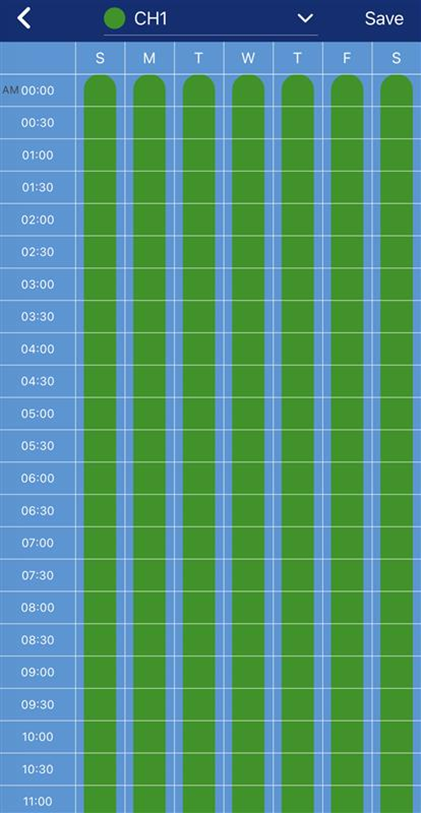
- Filter: Tap the drop-down arrow to select a channel.
- Days: Displays the days of the week.
- Time: Displays the time of day.
- Green bars: Indicate active notification times (default: always on).
Note: Remember to tap Save to apply any changes.
Managing Push Notifications
Notification Screen Overview:
The Notification Screen lists all alerts sent to your phone.
 Important: You must enable and configure push notifications before you can view the list of notifications. View the previous section to configure the notification settings, as needed.
Controls & Features:
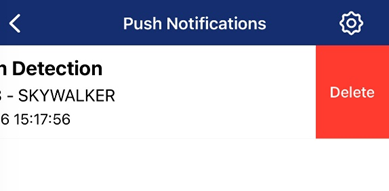
1. Notification List: Tap a notification to view playback of the recorded event. (See "Lorex Cirrus app - Playback" for details.)
- Swipe left on a notification → Tap Delete to remove it.
2. Delete All: Clears all notifications.
3. Select All: Selects all notifications for bulk actions.
4. Settings: Opens the notification settings menu. (See the previous section for setup details.)