


This guide will help you view recorded video playback from your security system using the Lorex Cirrus app.
Accessing Playback:
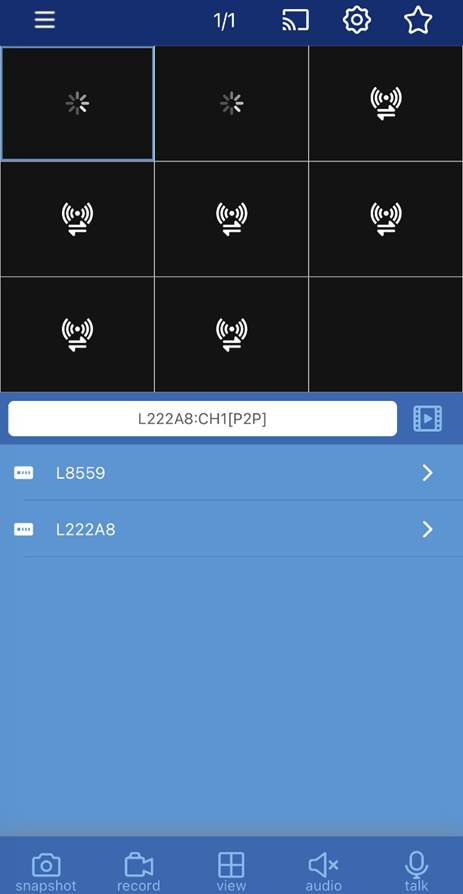
- From the live view, choose a channel in the display view.
- Tap the Playback button
 to open the channel's playback screen.
Playback Overview
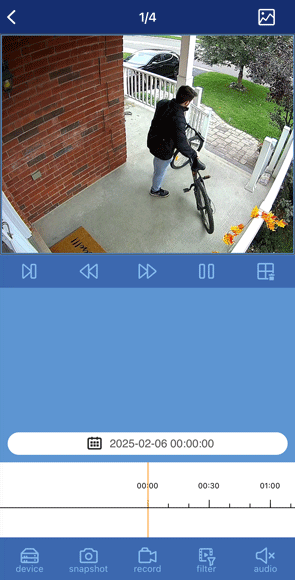
- Display Area: Double-tap to open a single channel in full-screen. Swipe left and right to switch between channels.
- Frame-by-Frame: Tap to play the video one frame at a time.
- Slow Motion: Play the recording at a slower speed.
- Fast Forward: Speed up playback.
- Play / Pause: Tap to start or pause the video.
- Close All: Tap to stop all the playback recordings.
-
Date Selection:
- Tap the Calendar button to open the playback calendar.
- Swipe left or right to switch between months.
- Tap a date with a red dot to start playback from that day (Red dot under a date = Days with recorded video).
- Tap X to close the calendar and return to playback.
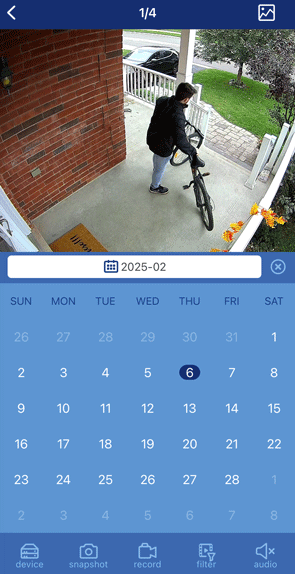
- Swipe left and right to change the month.
- The red date indicates the current date.
- Red dots below dates indicate days with playback recordings.
- Tap a date with a red dot to quickly play the playback recording.
- Tap the
 icon to close the calendar and return the playback screen.
-
Timeline Controls:
- The timeline shows the duration of recorded footage.
- Swipe left or right to scroll through recorded events.
- Pinch to zoom in/out for more precise navigation.
- Highlighted sections indicate recorded events:
- Green: Continuous or manual recording
- Blue: Alarm-triggered recording
- Yellow: Motion detection recording
-
Light Blue: Person detection recording
Tip: Swipe with one finger to move through the timeline faster.
-
Channel List: Tap to open the device's channel list and select a channel. Tap the
 icon again to minimize the channel list.
 - Snapshot: Tap to take a snapshot from the selected camera. Refer to the article "Lorex Cirrus app - View saved snapshots and videos" article, for more information.
- Manual Record: Tap to start / stop manual recording. Refer to the article "Lorex Cirrus app - View saved snapshots and videos" article, for more information.
-
Playback Type: Tap to open a list of playback types, then tap to select a specific playback type:
- All
- Continuous / Manual
- Alarm
- Motion
- Person
Audio: Tap to mute / unmute audio coming from the camera (audio-enabled cameras only; must have self-powered microphone connected to the camera).
Thumbnail: Tap to view a collection of playback thumbnails. Tap the thumbnails to go to a specific playback recording.