


This article details how to configure Motion Zones™ in the Lorex Classic App.
Motion Zones™ in Wired Cameras
- Open the Lorex Classic App.
- Tap the
 button in the bottom right of the screen.
 - Tap
 in your camera’s thumbnail.
 - Tap … to open your camera’s Device Settings.
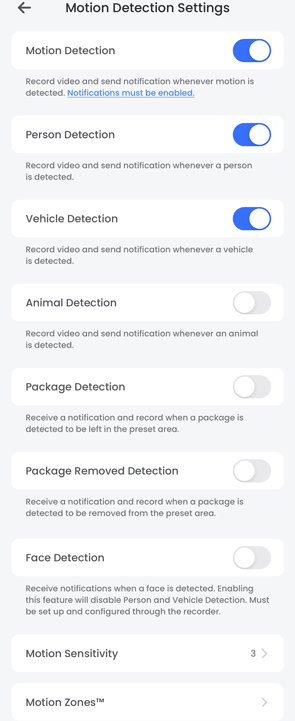
- Tap Motion Detection Settings:
-
Motion Detection: Toggle the switch
 /
/  to enable or disable motion detection.
 - Person, Vehicle, Animal, Package, Package Removed, and Face Detection: Enable specific detection types to focus on people or vehicles.
-
Motion Sensitivity: Adjust the sensitivity level from 1 (less) to 5 (more). Higher levels detect smaller movements but may result in more notifications.

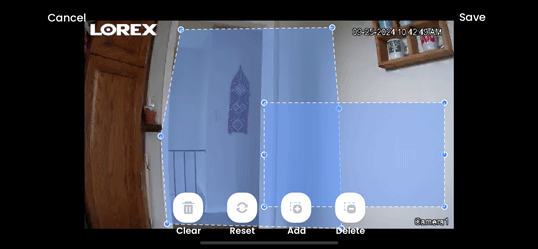
- Use Motion Zones to focus on specific areas within the camera’s view for motion detection. (Depending on your camera model) You can draw your motion zone to target specific areas in view. Tap
 to clear the motion zone completely,
  to invert the motion zones and highlight the opposite section, and
  to erase the motion zone manually.
-
Motion Detection: Toggle the switch
Note: The area highlighted in blue is the area in which motion will be detected.
Motion Zones™ in Smart Home Cameras
- Open the Lorex Classic App.
- Tap the
 button in the bottom right of the screen.
 - Tap
 in your camera’s thumbnail.
 - Tap … to open your camera’s Device Settings.
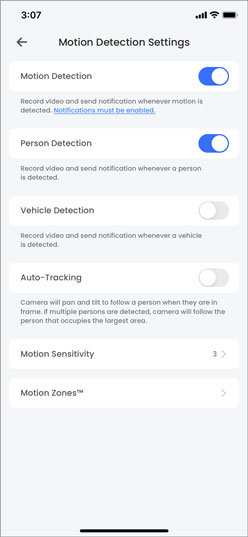
- Tap Motion Detection Settings:
-
Motion Detection: Toggle the switch
 /
/  to enable or disable motion detection.
 - Person and Vehicle Detection: Enable specific detection types to focus on people or vehicles.
- Auto-Tracking: Enable the camera to automatically follow moving objects.
- Motion Sensitivity: Adjust the sensitivity level from 1 (less) to 5 (more). Higher levels detect smaller movements but may result in more notifications.
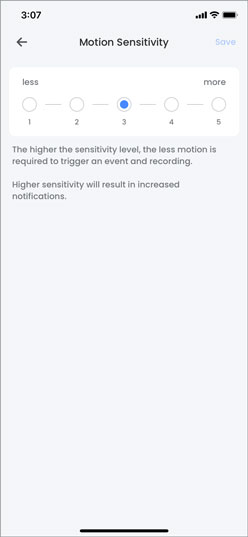
- Use Motion Zones to focus on specific areas within the camera’s view for motion detection. (Depending on your camera model) Create zones for:
- General Motion (Available for all models)
- Person Detection
- Vehicle Detection
Note: The area highlighted in blue is the area in which motion will be detected.
You can draw your motion zone to target specific areas in view. Tap  to clear the motion zone completely,
  to invert the motion zones and highlight the opposite section, and
  to erase the motion zone manually.