


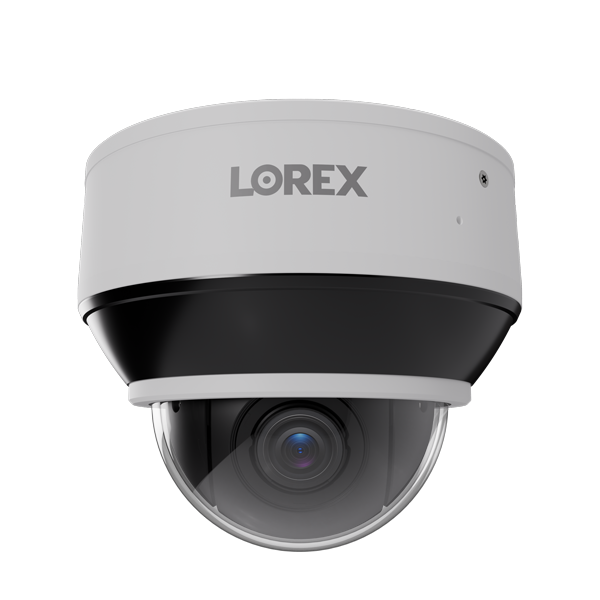
This FAQ & Troubleshooting Guide covers the most common questions and issues for the Lorex Connect X Series 2K+ Mini PTZ Dome Camera with 5× Optical Zoom (CNU01P-5PW-AB1). Use it to troubleshoot camera power and connection issues, PTZ controls, Auto Tracking, IVS / AI analytics, image and night vision problems, audio, microSD storage, and NVR / app setup.
Need more details? Refer to the camera's Specification Sheet, Installation Guide, Instruction Manual, and your compatible Lorex NVR User Manual.
TABLE OF CONTENTS
- Quick Fix Checklist (Start Here)
-
Troubleshooting
- Camera does not power on / no image
- Camera offline / not detected
- Camera shows red status after being added
- PTZ controls are not responding
- Camera moves on its own
- Auto Tracking does not follow a target / returns to wrong position
- IVS / AI detection or PTZ linkage is not working
- Image is blurry, out of focus, or unclear when zoomed
- Night image is hazy / IR night vision does not look clear
- No audio from camera recordings
- microSD card is not detected / local recordings missing
- Reset button does not seem to work
- Remote viewing is not working
-
Frequently Asked Questions (FAQ)
- What safety precautions should I follow?
- What comes in the box?
- How do I install and mount the camera?
- How do I connect the camera directly to a compatible NVR?
- Can I connect through a PoE switch or 12V DC power adapter?
- How do I add a LAN-connected camera to the NVR?
- How do I use the PTZ controls?
- How do I create a preset, scan, or tour?
- How do I configure Auto Tracking?
- What IVS / AI analytics are supported?
- How do I link an IVS event to a PTZ preset?
- How do I insert or remove a microSD card?
- How do I factory reset the camera?
- How do I access the camera through a web browser?
- How do I view the camera with Lorex Connect?
- What are the main technical specifications?
- What are the camera dimensions and weight?
- How do I correct an upside-down or sideways image?
- How do I record and play back Mini PTZ video on the NVR?
- Helpful Tips
- Explore Lorex Connect App Guides
Quick Fix Checklist (Start Here)
- Power: Confirm the PTZ camera is connected to a working PoE (IEEE 802.3af) source or compatible 12V DC power adapter.
- Connection: Check that the CAT5e or higher Ethernet cable is fully seated and not damaged.
- NVR: If connected through the local network, make sure the camera has been searched for and added to the recorder.
- Startup: Allow the camera time to initialize after power is connected.
- PTZ: Check whether a Scan, Tour, Auto Tracking, or IVS PTZ action is active.
- Auto Tracking: Verify the tracking type, Start Point preset, and tracking configuration.
- Image: Remove the protective film and clean the lens with a soft, slightly damp cloth.
- microSD: Local microSD recordings are separate from NVR and mobile-app recordings.
Camera does not power on / no image
- Confirm the camera is receiving power from a compatible PoE (IEEE 802.3af) source or 12V DC power adapter.
- If connected directly to an NVR PoE port, try another available port or Ethernet cable.
- If connected through a PoE switch, confirm the switch is powered on and has sufficient available PoE power.
- If using a 12V DC adapter, confirm the camera is also connected to the network using Ethernet.
- Allow the camera to complete its startup sequence.
- Test the camera with a short, known-good Ethernet cable near the recorder or PoE switch.
- Confirm the Ethernet cable does not exceed 300 ft (91 m).
Camera offline / not detected
- Confirm the camera is powered on and connected to the same local network as the compatible NVR.
- Right-click twice in Live View to open the Main Menu. Go to Main Menu > Settings > Channel > Camera.
- Click Start Search to scan for available cameras.
- Select the camera from the Online Device list and click Add.


- Verify that the camera status changes to green and live video appears.
- If the camera does not appear, check the Ethernet connection, network configuration, and camera power.
Camera shows red status after being added
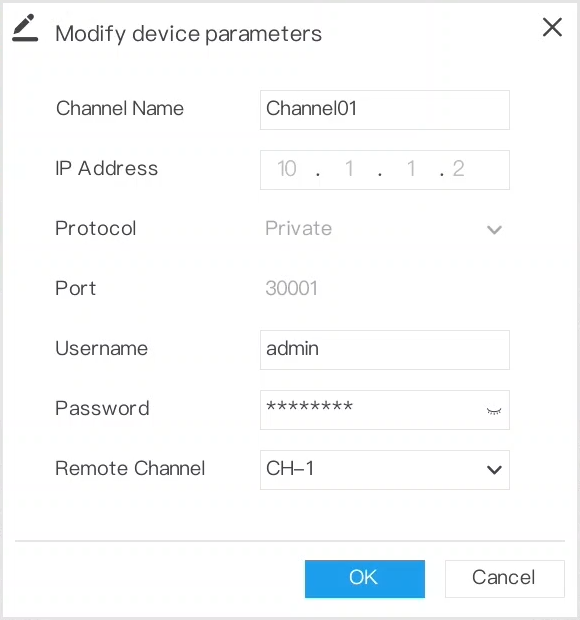
A red camera status may indicate an authentication mismatch or a network connection problem.
- Right-click twice in Live View and go to Main Menu > Settings > Channel > Camera.
- Locate the affected camera and click
 Modify under Operate.
 - Confirm the camera's IP address, username, password, and connection settings.
- Click OK to save changes.
- If needed, follow the compatible NVR manual's camera authentication and connection recovery instructions.
- Confirm the channel status changes to green.
PTZ controls are not responding
- Confirm the correct Mini PTZ camera channel is selected and live video is displayed.
- In Live View, select the PTZ camera channel and click
 PTZ on the Quick Camera Toolbar.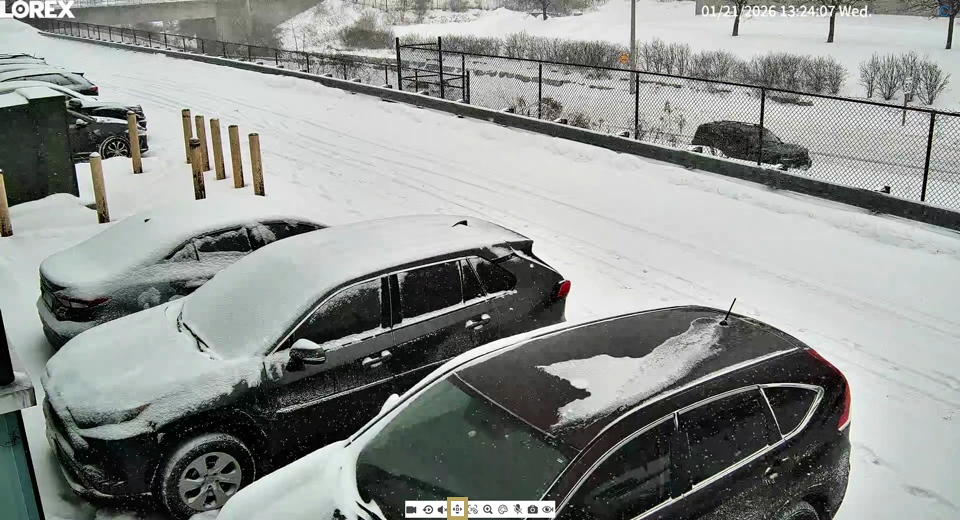
- Open the Advanced PTZ menu and test the directional arrows and zoom controls.
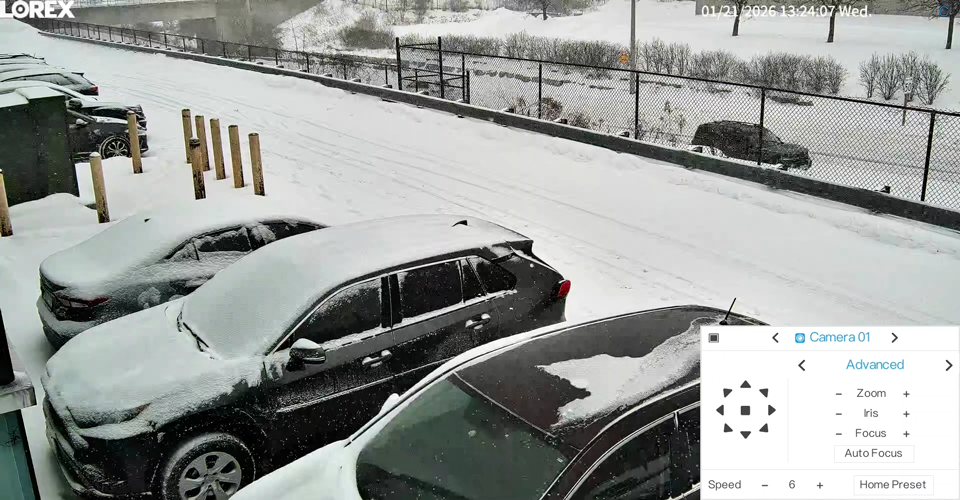
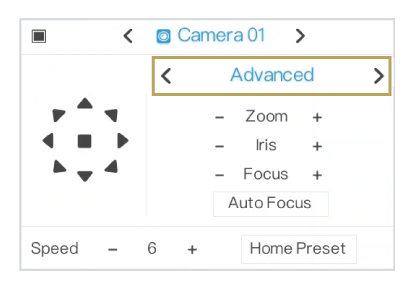
- Check whether a Scan, Tour, Auto Tracking, or IVS-triggered PTZ action is currently active.
- Confirm the camera has enough clearance to pan and tilt without physical obstructions.
- Check the Ethernet cable and power connections.
Camera moves on its own
The Mini PTZ can move automatically when Auto Tracking, Scan, Tour, or IVS PTZ linkage is active.
- Auto Tracking: Right-click twice in Live View and go to Main Menu > Settings > Channel > Auto Tracking. Review whether Auto Tracking is enabled.
- Scan / Tour: Open Live View > Select the PTZ camera channel > PTZ (Quick Camera Toolbar), switch to the Scan or Tour menu, and stop the active operation.
- IVS linkage: Right-click twice in Live View and go to Main Menu > Settings > IVS > Smart Analysis. Select the event and review Event Actions > PTZ.
Auto Tracking does not follow a target / returns to wrong position
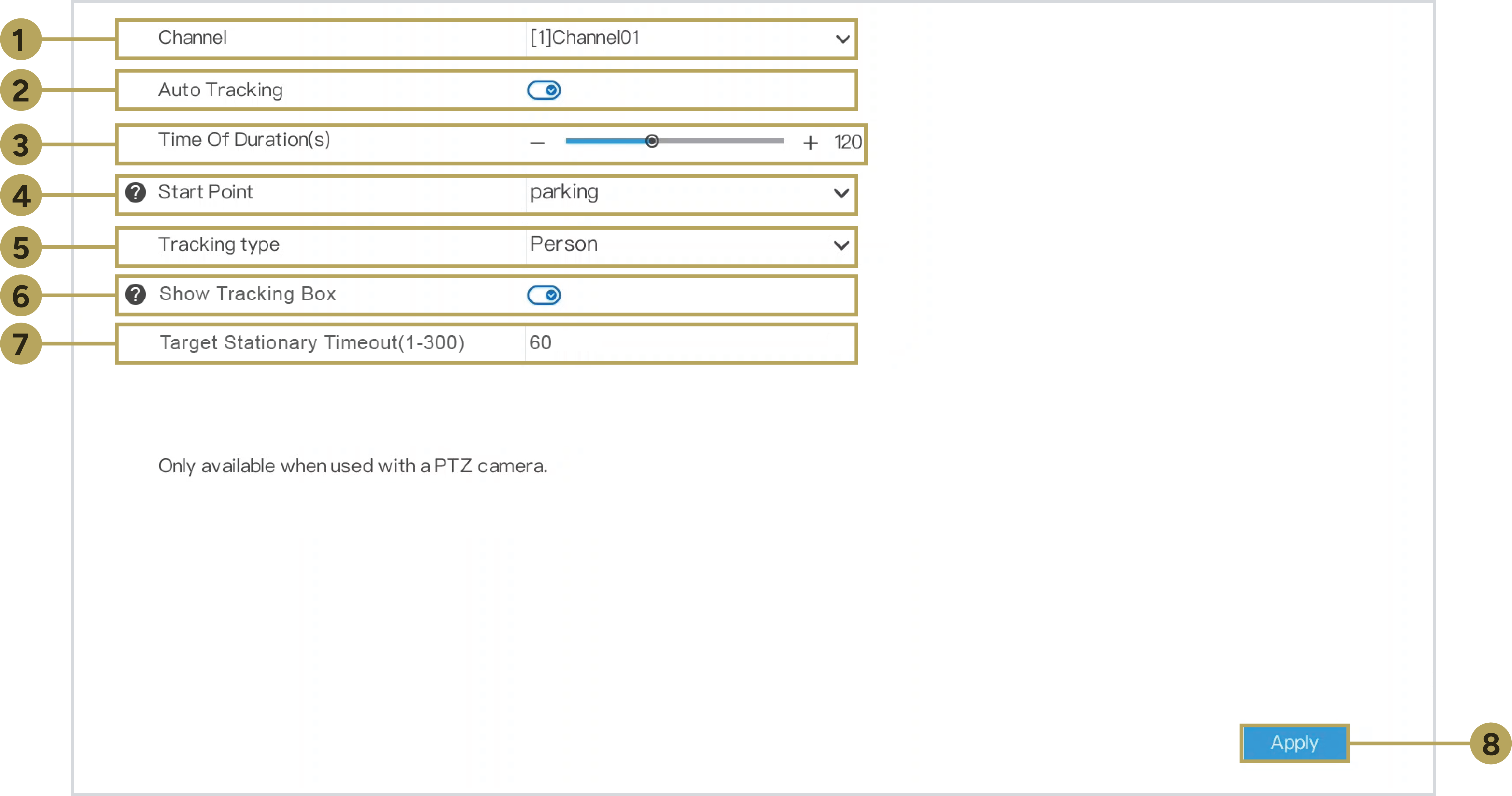
- Right-click twice in Live View and go to Main Menu > Settings > Channel > Auto Tracking.
- Select the correct camera channel and verify Auto Tracking is enabled.
- Review the Tracking Type and select the intended target type.
- Verify the Time of Duration and available tracking sensitivity settings.
- Confirm the selected Start Point preset exists and represents the desired return position.
- Stop active Scan or Tour operations. Auto Tracking is disabled when Preset, Scan, or Tour functions are active.
- Keep the monitoring area clear of obstructions and excessive glare.
- Click Apply after making changes.
IVS / AI detection or PTZ linkage is not working
- Right-click twice in Live View and go to Main Menu > Settings > IVS > Smart Analysis.
- Select the correct camera channel and supported detection rule.
- Verify the detection rule is enabled and its detection area or line is correctly configured.
- Check the event schedule, target filters, direction, sensitivity, or detection duration where applicable.
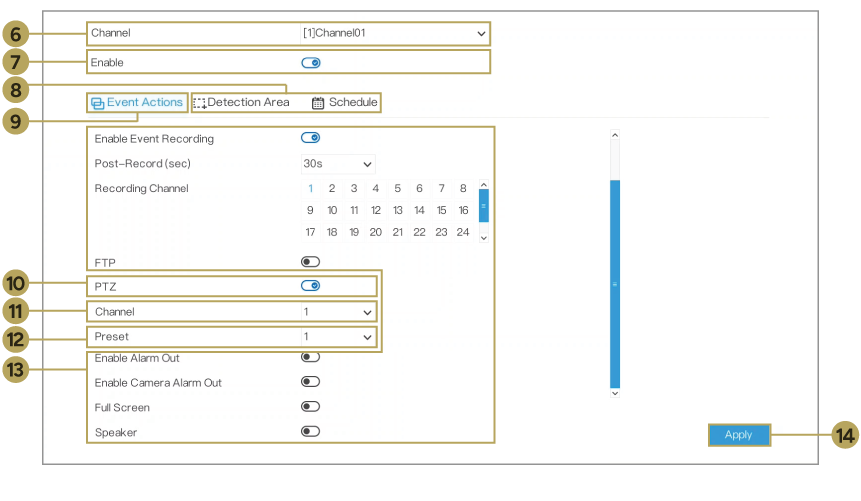
- To trigger PTZ movement, open Event Actions and enable PTZ.
- Select the PTZ camera channel and an existing preset, then click Apply.
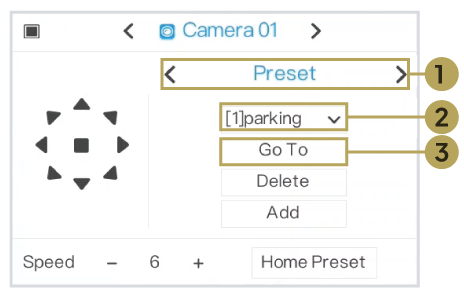
- Test the preset separately using Live View > Select the PTZ camera channel > click PTZ (Quick Camera Toolbar) > Preset.
 .
.
Image is blurry, out of focus, or unclear when zoomed
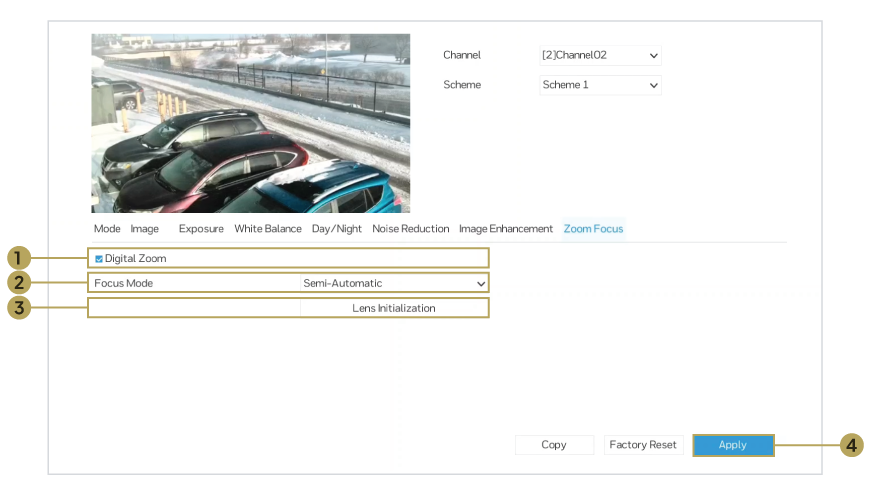
- Open Live View > Select the PTZ camera channel > PTZ (Quick Camera Toolbar) > Advanced and try Auto Focus.
- Right-click twice in Live View and go to Main Menu > Settings > Channel > Image > Zoom Focus.
- Select the Mini PTZ channel and review Focus Mode.
- Where available, use Auto Focus Once to refocus the camera or Lens Initialization to recalibrate the lens.
- Reduce the optical zoom temporarily to check whether the issue is related to focus distance.
- Clean the lens and make sure the protective film has been removed.
- Click Apply after making changes.
Night image is hazy / IR night vision does not look clear
- The Mini PTZ supports IR night vision up to 98 ft (30 m) under ideal conditions.
- Keep nearby walls, eaves, glass, branches, and reflective objects away from the immediate camera view.
- Do not point the camera through glass, as infrared light may reflect toward the lens.
- Clean the transparent dome and lens area to remove dust, water spots, fingerprints, insects, or spiderwebs.
- Make sure the protective film has been removed.
- Adjust the camera position if nearby surfaces are causing infrared reflection.
- If needed, review the camera's night vision settings under Main Menu > Settings > Channel > Image > Day/Night, selecting the Mini PTZ channel.

No audio from camera recordings
The Mini PTZ includes a built-in microphone for audio recording. It does not have a built-in speaker or Two-Way Talk feature.
- Right-click twice in Live View and go to Main Menu > Settings > Channel > Audio > Audio Input.
- Select the Mini PTZ camera channel.
- Enable Audio Input and select Internal, where available.
- Click Apply.
- Go to Main Menu > Settings > Record > Recording Schedule.
- Select the camera channel and enable Record Audio, where available.
- Click Apply.
- Check that the microphone opening is not obstructed.
microSD card is not detected / local recordings missing
- Confirm the microSD card is fully inserted and does not exceed 1 TB.
- Restart the camera after inserting the card.
- Connect to the camera through a compatible web browser to review microSD storage status and recording configuration.
- Local microSD recordings are stored independently from recordings on the NVR.
- microSD recordings do not upload to the NVR or to the cloud for Lorex Connect app playback.
- To review footage through the NVR or Lorex Connect app, configure recording on the compatible NVR.
Reset button does not seem to work
- Confirm the camera is powered on before pressing Reset.
- Locate the side microSD/reset compartment.
- In dry conditions, remove the two compartment screws using the included Torx key.
- Press and hold the Reset button for 5 seconds.
- Allow the camera to restart.
- Replace the compartment cover and securely tighten both screws.
- Reconfigure camera settings and re-add the camera to the NVR if required.
Remote viewing is not working
- Remote viewing is provided through the compatible NVR using the Lorex Connect app.
- Confirm the recorder is connected to the network and has Internet access.
- Right-click twice in NVR Live View and go to Main Menu > Settings > System > Lorex Connect App.
- Confirm the recorder is online and properly added to the app.
- If the recorder is offline, troubleshoot its network connection before troubleshooting the camera.
What safety precautions should I follow?
- Read all instructions before installing or operating the camera.
- Disconnect all power connections before installation, removal, or servicing. The camera may move automatically when power is applied.
- Use only a compatible 12V DC power source or PoE (IEEE 802.3af).
- Ensure the mounting surface can support the camera and mounting hardware.
- Always support the camera when attaching it to or removing it from the mounting base.
- Use the included locking screw to secure the camera to the mounting base.
- Check for electrical wiring or other utilities before drilling.
- Protect all Ethernet connections from moisture using the included weather-resistant RJ45 cable gland.
- Keep the microSD/reset compartment closed and dry.
- Do not open the compartment in rain or high-humidity conditions.
- Do not disassemble, modify, or lift the camera by its cables.
- Do not point the camera directly toward the sun or intense light sources.
- The camera is IP66 weather-resistant when properly installed but is not intended for submersion.
What comes in the box?
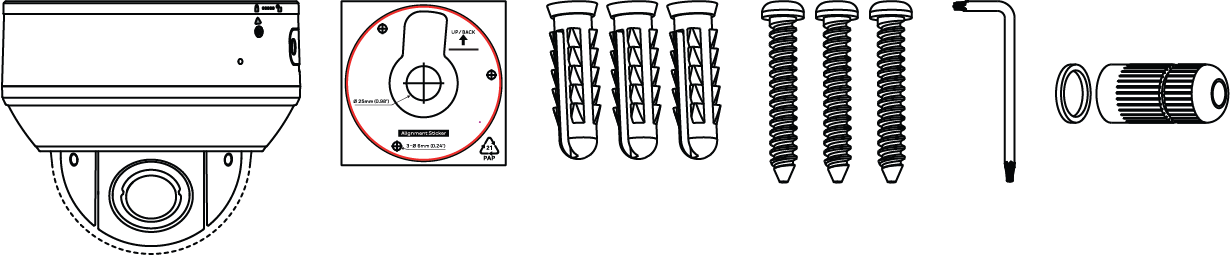
- 1 × X 2K+ Mini PTZ Dome Camera (CNU01P-5PW-AB1)
- 1 × Mounting Template
- 3 × Mounting Anchors
- 3 × Mounting Screws
- 1 × Torx Key
- 1 × Weather-Resistant RJ45 Cable Gland
How do I install and mount the camera?
The Mini PTZ supports wall or ceiling mounting. For optimal coverage, install the camera approximately 10 ft (3 m) above ground in a location with an unobstructed view and enough clearance for PTZ movement.
For complete step-by-step instructions and installation diagrams, refer to the Mini PTZ Installation Guide.
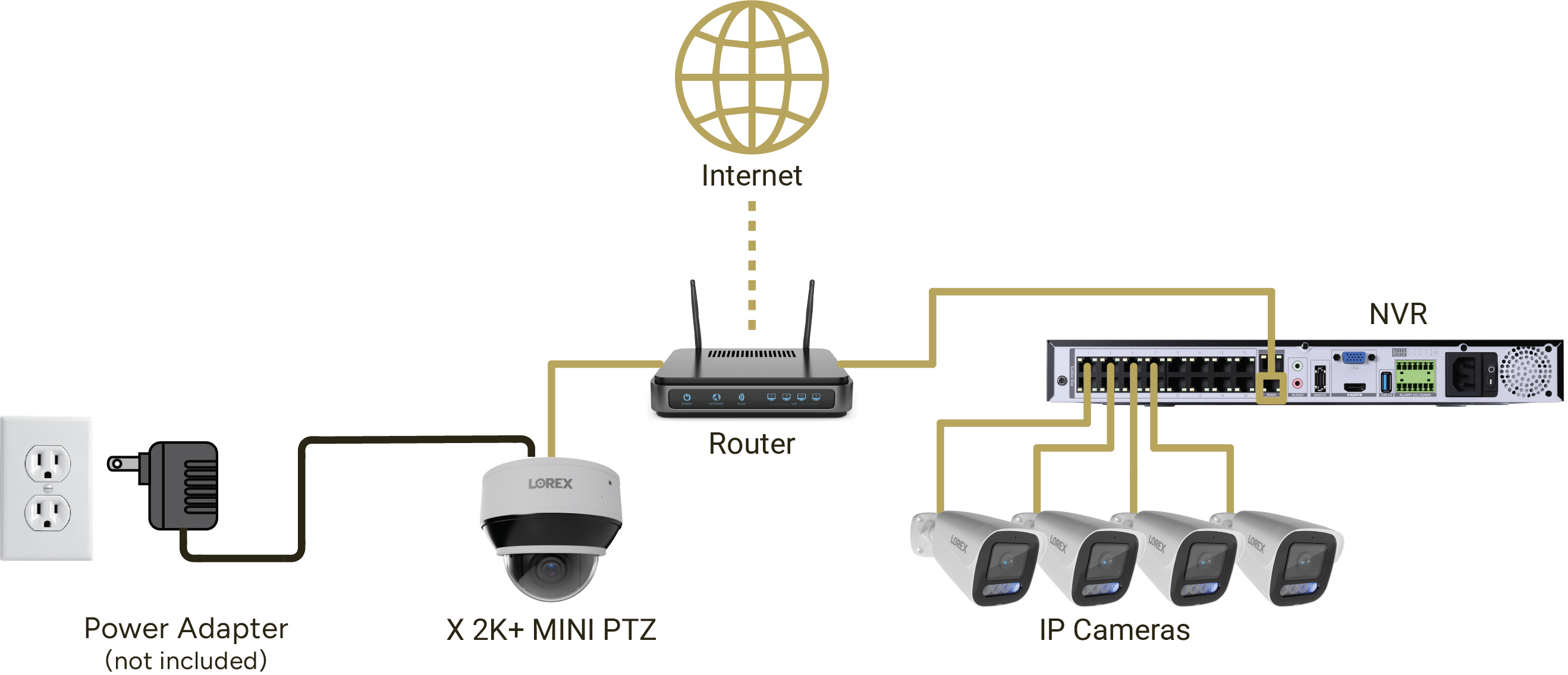
How do I connect the camera directly to a compatible NVR?
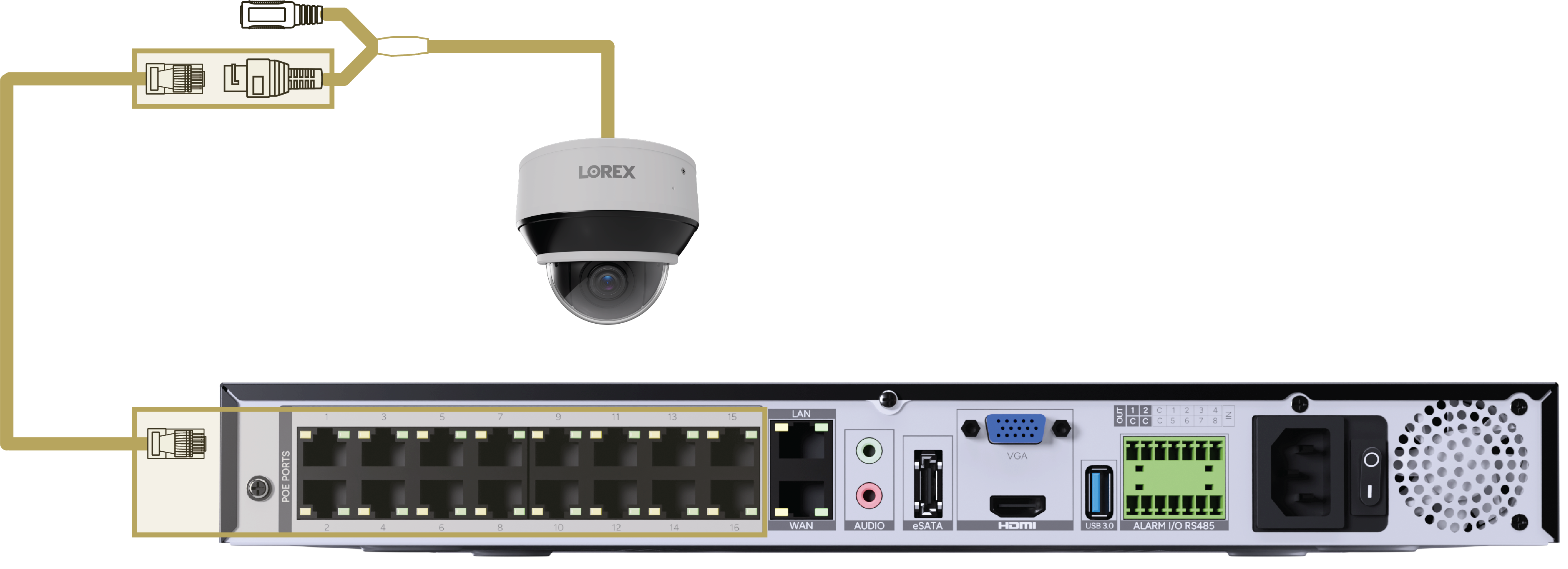
For the simplest installation, connect the camera directly to an available PoE port on a compatible Lorex NVR. A single Ethernet cable supplies power and carries video and PTZ control data.
- Connect the camera's Ethernet connector to a CAT5e or higher Ethernet extension cable.
- Connect the other end to an available PoE port on the back of the compatible NVR.
- Allow the camera to power on and finish initializing.
- Confirm live video appears in Live View.
- Select the camera channel and open PTZ from the Quick Camera Toolbar to test movement and zoom.
Can I connect through a PoE switch or 12V DC power adapter?
Yes. The Mini PTZ supports PoE (IEEE 802.3af) and 12V DC power. Cameras connected through the local network must be added to the recorder.
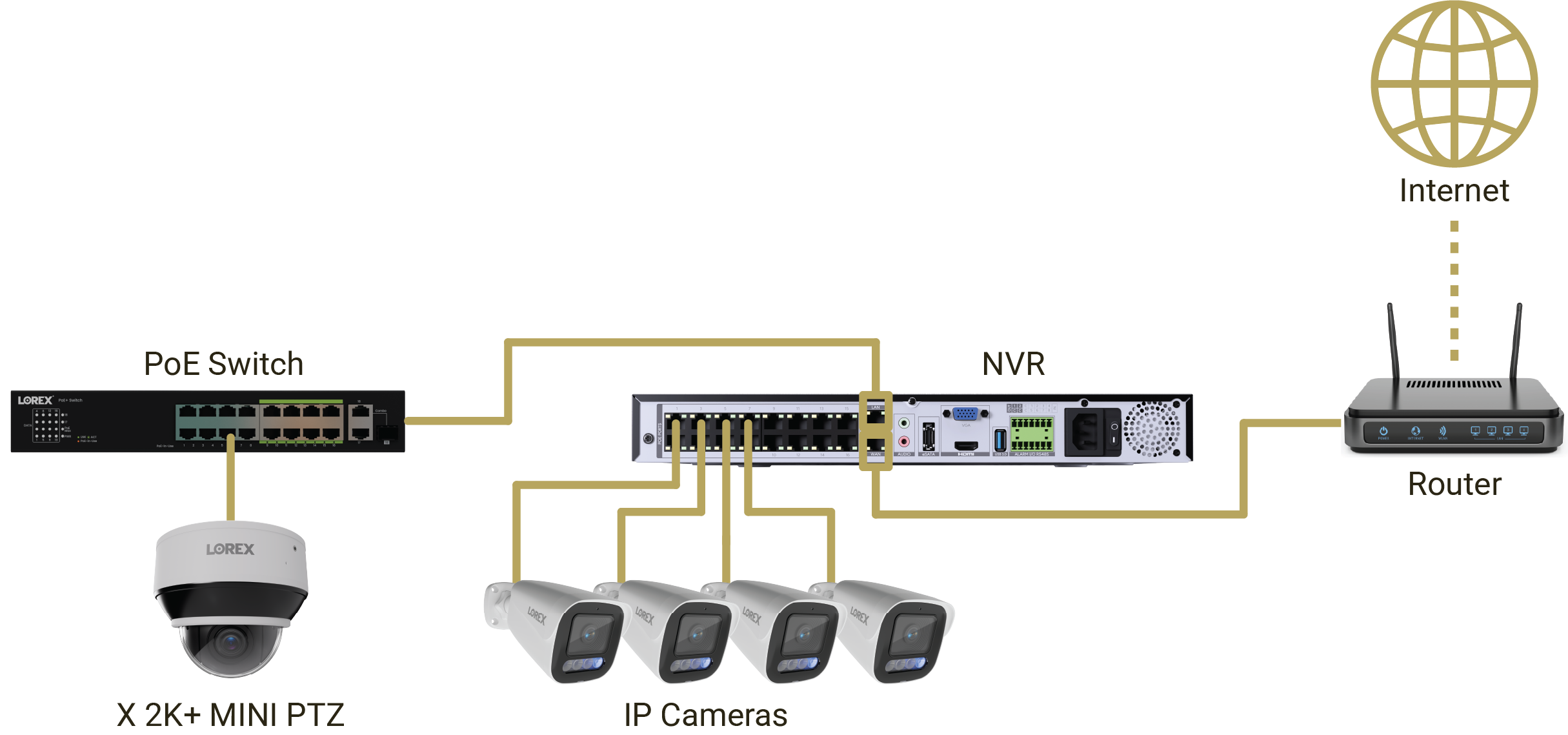
Option A: Connecting with a PoE Switch
- Connect a compatible PoE switch to a power source.
- Connect the PoE switch to the local network used by the NVR.
- Connect the camera to a PoE port on the switch using CAT5e or higher Ethernet cable.
- Confirm the camera powers on.
- Add the camera to the NVR using the network device search procedure below.
Option B: Connecting with a 12V DC Power Adapter
- Connect a compatible 12V DC power adapter to the camera.
- Connect the adapter to a power outlet.
- Connect the camera's Ethernet connector to the router or standard network switch.
- Confirm the NVR is connected to the same local network.
- Add the camera through the NVR Camera menu.
How do I add a LAN-connected camera to the NVR?
- Confirm the camera and NVR are connected to the same local network.
- Right-click twice in Live View to open the Main Menu.
- Go to Main Menu > Settings > Channel > Camera.
- Click Start Search.
- Select the Mini PTZ from the detected devices and click Add.
- Confirm the camera appears in Live View and displays a green connection status.

If the camera does not appear during the search:
- From Main Menu > Settings > Channel > Camera, click + under Operate to open Manually Add Devices.
- Select an available channel.
- Enter the camera's IP Address, supported Protocol, Port, Username, and Password.
- Click OK to add the camera.
- Confirm it connects successfully.

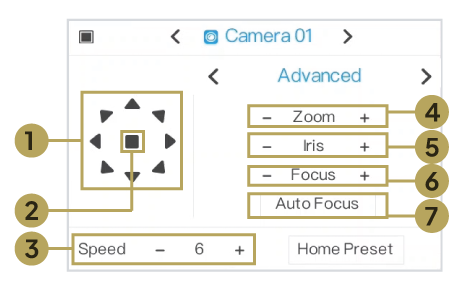
How do I use the PTZ controls?
The Mini PTZ supports remote pan, tilt, and 5× optical zoom through a compatible NVR.
- Open Live View and select the Mini PTZ camera channel.
- Click PTZ in the Quick Camera Toolbar.
- Use the menu arrow to switch between Advanced, Preset, Scan, and Tour.
- In Advanced, use the directional arrows to pan and tilt the camera.
- Adjust Speed to control movement speed.
- Use Zoom to zoom in or out.
- Use available Iris, Focus, or Auto Focus controls as needed.
How do I create a preset, scan, or tour?
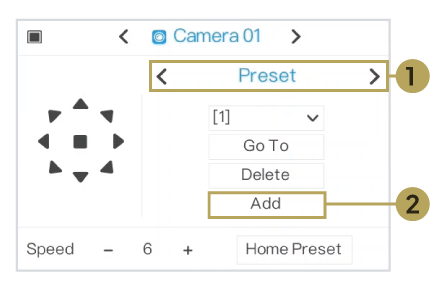
Preset: Saves a camera position that can be recalled later.
- Open Live View, select the PTZ camera channel, and click PTZ on the Quick Camera Toolbar. Switch to the Preset menu.
- Click Add.
- Move the camera to the desired viewing position.
- Select a preset number, enter a name, and click Save.
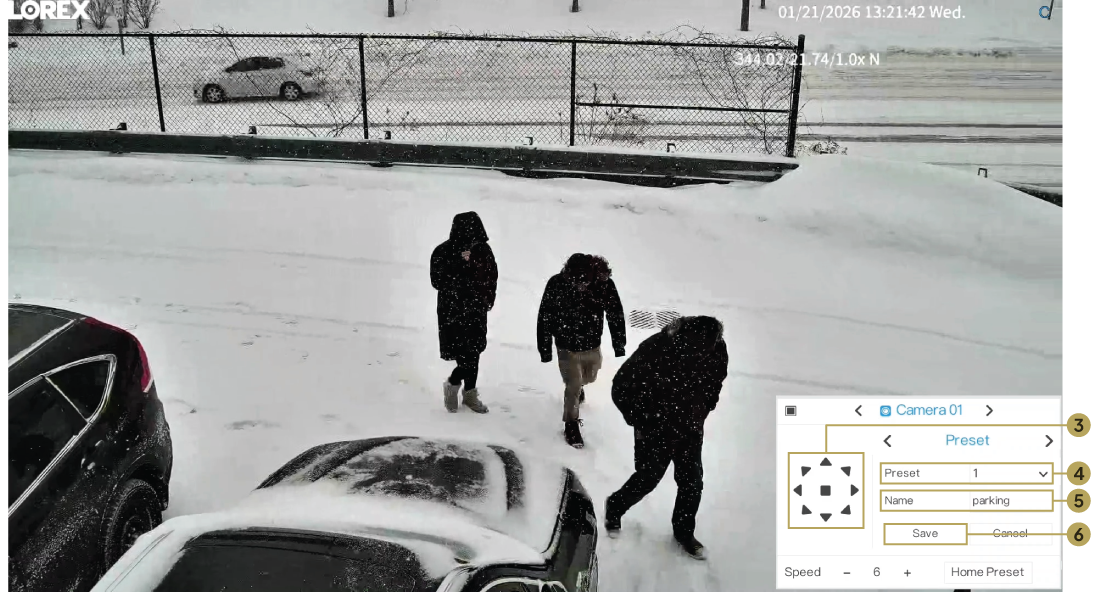
- To recall the position, select the preset and click Go To.
Scan: Automatically moves the camera between two selected positions.
- Open Live View, select the PTZ camera channel, and click PTZ on the Quick Camera Toolbar. Switch to the Scan menu.
- Select a scan number and click Edit.
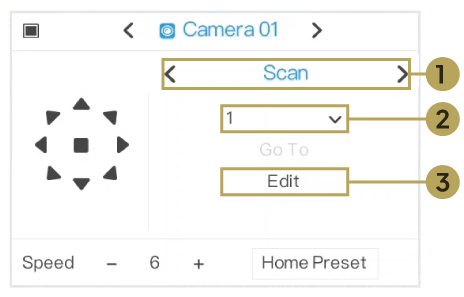
- Move the camera to the starting point and click Start.
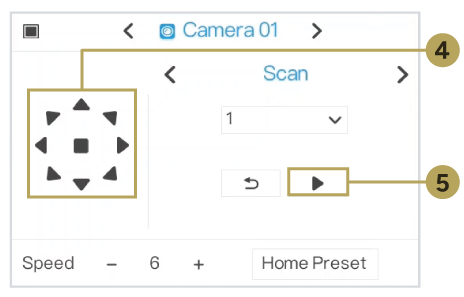
- Move the camera to the ending point and click Pause to save the scan.
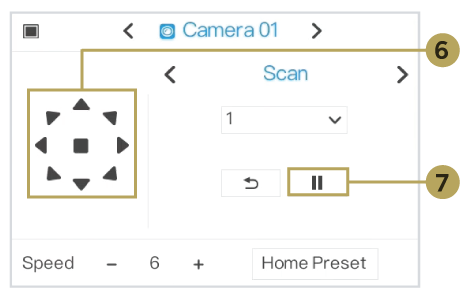
- Select the scan number and click Go To to run it.
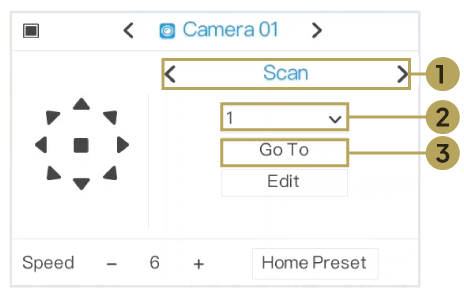
Tour: Automatically cycles through multiple saved presets.
- Create the desired presets first.
- Open Live View, select the PTZ camera channel, and click PTZ on the Quick Camera Toolbar. Switch to the Tour menu.
- Select a tour number and click Edit.
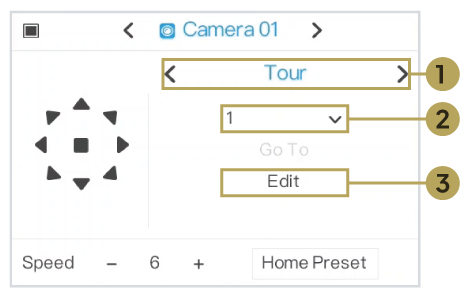
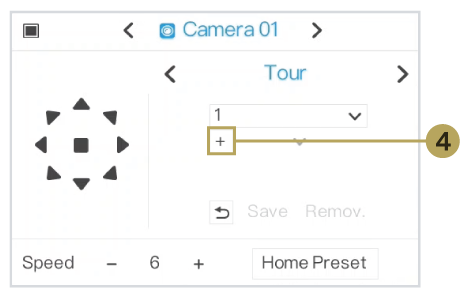
- Click + to add a preset.
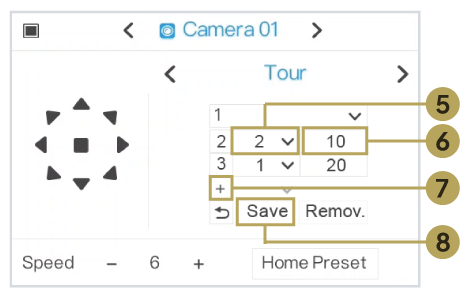
- Select the preset and configure its dwell time.
- Repeat for additional presets and click Save.
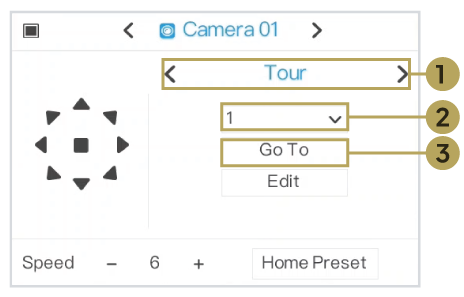
- Select the tour and click Go To to run it.
How do I configure Auto Tracking?
Auto Tracking allows the camera to automatically follow supported moving targets, including people and vehicles, using its pan, tilt, and zoom functions.
- First, create a return-position preset using Live View > Select the PTZ camera channel > PTZ (Quick Camera Toolbar) > Preset.
- Right-click twice in Live View and go to Main Menu > Settings > Channel > Auto Tracking.
- Select the Mini PTZ camera Channel.
- Enable Auto Tracking.
- Configure the available tracking sensitivity and zoom settings.
- Set Time of Duration (s).
- Select the saved Start Point preset.
- Select the supported Tracking Type.
- Enable Show Tracking Box to display a bounding box around the tracking target.
- Set Target Stationary Timeout (1–300) to specify how many seconds the camera continues tracking a target after it stops.
- Click Apply.
What IVS / AI analytics are supported?
The Mini PTZ supports the following AI and smart analytics features:
- Person Detection
- Vehicle Detection
- Smart Motion Detection
- Auto Tracking
- Intrusion Detection
- Line-Crossing
- Dual-Line Crossing
- Loitering Detection
- Wrong-Way Detection
- Unauthorized Parking Detection
- Area People Limit
- Perimeter Detection
- People Counting
To configure a supported IVS detection rule, right-click twice in Live View and go to Main Menu > Settings > IVS > Smart Analysis. Select the camera channel and detection type, then configure the available detection area, direction, target filters, schedule, and event actions.
How do I link an IVS event to a PTZ preset?
PTZ linkage allows supported IVS events to automatically move a PTZ camera to a saved preset position.
- Create the desired preset using Live View > Select the PTZ camera channel > PTZ (Quick Camera Toolbar) > Preset.
- Right-click twice in Live View and go to Main Menu > Settings > IVS > Smart Analysis.
- Select a supported detection type and the camera channel.
- Enable and configure the detection rule.
- Open Event Actions.
- Enable PTZ.
- Select the PTZ camera under Channel.
- Select the desired saved Preset.
- Click Apply.
How do I insert or remove a microSD card?
The Mini PTZ supports an optional microSD card up to 1 TB for independent local recording.
- Disconnect all camera power connections before inserting or removing the card.
- Locate the microSD/reset compartment on the side of the camera.
- In a dry environment, use the included Torx key to loosen the two compartment cover screws.
- Carefully remove the cover.
- To insert: Gently push the microSD card into the slot until it clicks into place.
- To remove: Gently push the card inward to release it, then pull it out.
- Replace the compartment cover and tighten both screws securely.
- Restore power to the camera.

How do I factory reset the camera?
- Keep the camera powered on for the reset procedure.
- Locate the microSD/reset compartment on the side of the camera.
- In dry conditions, loosen the two cover screws using the included Torx key.
- Remove the cover to access the Reset button.
- Press and hold Reset for 5 seconds.
- Allow the camera to restart.
- Replace the compartment cover and securely tighten both screws.
- Reconfigure the camera and reconnect it to the NVR if required.
How do I access the camera through a web browser?
- Confirm the camera is connected to the local network and has an IP address.
- Open a compatible web browser on a computer connected to the same network.
- Enter the camera's IP address in the address bar.
- Log in using the camera username and password.
- Use the camera's available web interface settings to access independent microSD recordings.
How do I view the camera with Lorex Connect?
The Mini PTZ can be viewed remotely through a compatible NVR added to the Lorex Connect app.
For step-by-step instructions, see X Series NVR: Connect Your Recorder to the Lorex Connect App.
- Connect the NVR to the network and confirm it has Internet access.
- Download the Lorex Connect app and sign in.
- Tap + Add device and select Recorder.
- Follow the on-screen instructions to add the recorder.
- If QR-code pairing is required, right-click twice in NVR Live View and go to Main Menu > Settings > System > Lorex Connect App.
- Scan the displayed QR code using the app.
- Once the recorder is paired, open the Mini PTZ camera channel to view live video.


What are the main technical specifications?
| Model | CNU01P-5PW-AB1 |
| Image Sensor | 5M 1/2.7-inch CMOS |
| Maximum Resolution | 5MP (2880 × 1620) |
| Maximum Frame Rate | 30 fps |
| Aspect Ratio | 16:9 |
| Wide Dynamic Range | 120 dB True WDR |
| Lens | Motorized Varifocal |
| Focal Length | 2.7–13.5 mm |
| Aperture | F1.66–F3.03 |
| Optical Zoom | 5× |
| Diagonal Field of View | 115°–36.5° |
| Horizontal Field of View | 111.5°–32.3° |
| Vertical Field of View | 57.5°–17.9° |
| Video Compression | Nano Codec (Enhanced H.265), H.265, H.264, MJPEG |
| Video Streams | Main / Sub / Third Stream |
| Bit Rate Control | CBR / VBR |
| IR Night Vision | Up to 98 ft (30 m) |
| Microphone | Built-in microphone |
| Network Interface | RJ45 (10/100 Base-T) |
| Protocols | ONVIF Profiles G/M/S/T, RTSP |
| Local Storage | microSD up to 1 TB (not included) |
| Power | 12V DC / PoE (IEEE 802.3af) |
| Maximum Power Consumption | <12 W (PoE) |
| Housing Material | Aluminum Alloy |
| Color | White |
| Weather Rating | IP66 |
| Operating Temperature | −22°F to 140°F (−30°C to 60°C) |
| Operating Humidity | ≤90% RH |
What are the camera dimensions and weight?
The Mini PTZ has the following dimensions:
- Diameter: 4.61 in (117.2 mm)
- Height: 3.91 in (99.3 mm)
- Weight: 1.168 lb (0.53 kg)
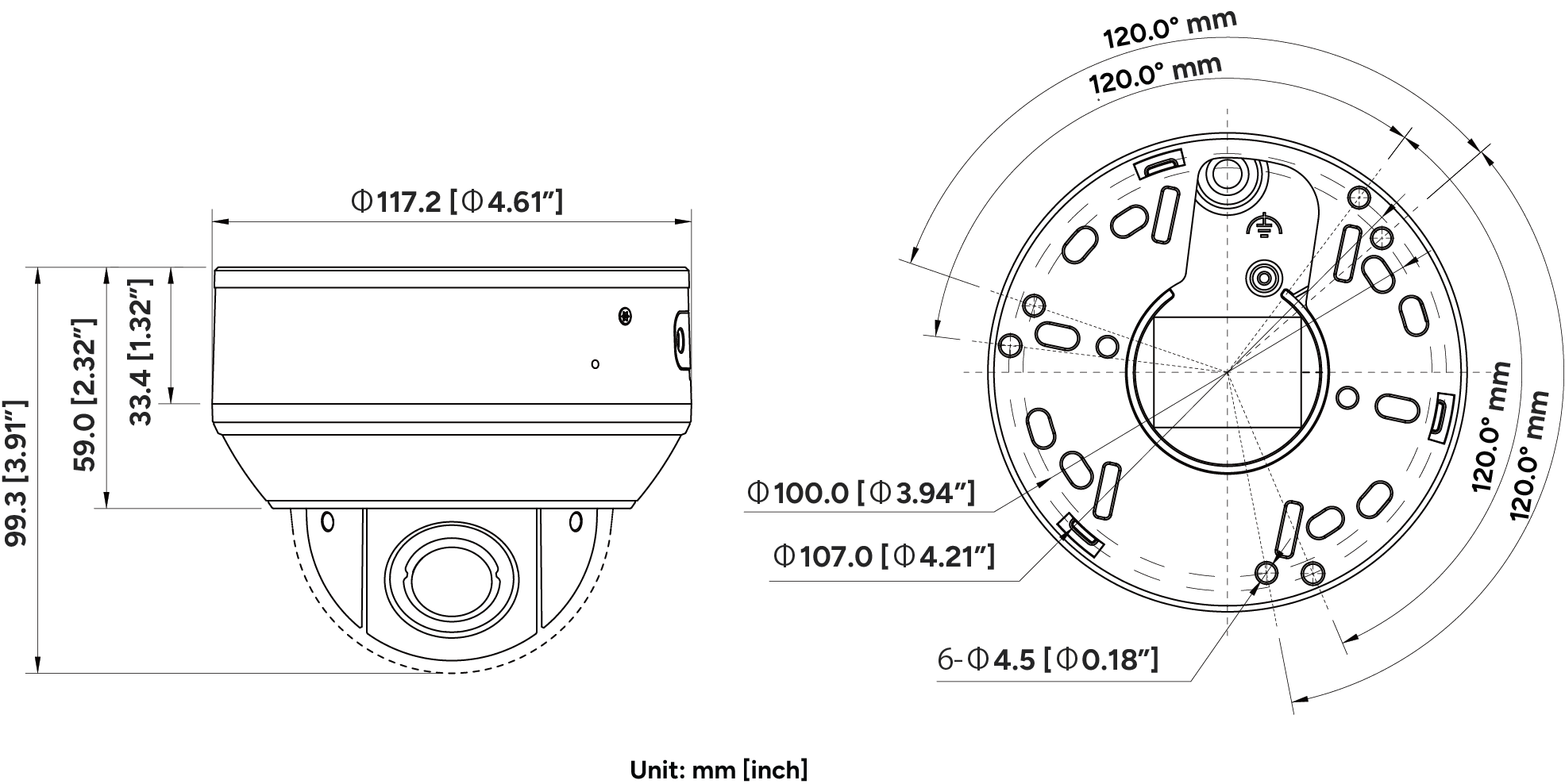
Refer to the camera specification sheet for the detailed mounting hole layout and dimensions. Use the included mounting template when drilling.
How do I correct an upside-down or sideways image?
- Right-click twice in Live View to open the Main Menu.
- Go to Main Menu > Settings > Channel > Image > Image.
- Select the Mini PTZ camera channel.
- Review the available Flip settings.
- Where supported, select the orientation that correctly displays the camera image.
- Click Apply and verify the image in Live View.

How do I record and play back Mini PTZ video on the NVR?
The Mini PTZ can record to a compatible NVR. Recordings stored on the NVR are separate from independent microSD recordings.
- Right-click twice in Live View and go to Main Menu > Settings > Record > Recording Schedule.
- Select the Mini PTZ camera channel.
- Enable recording and configure the desired recording schedule.
- If audio recording is needed, enable Record Audio where supported.
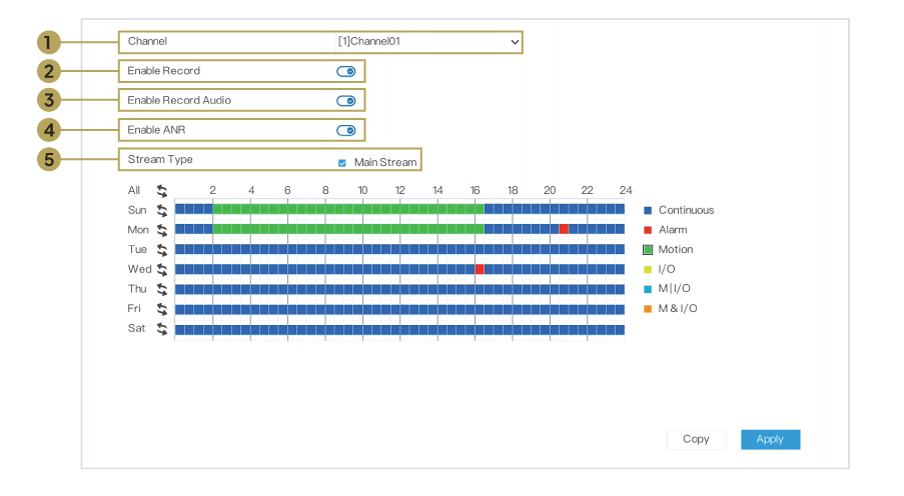
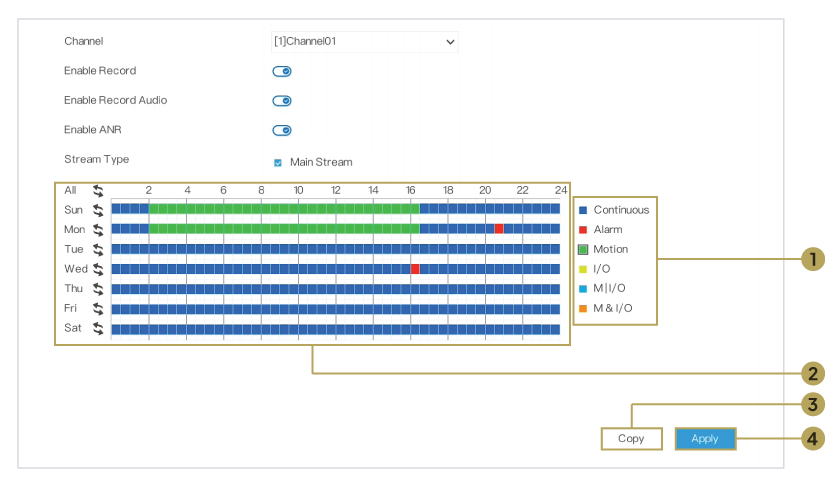
- Click Apply.
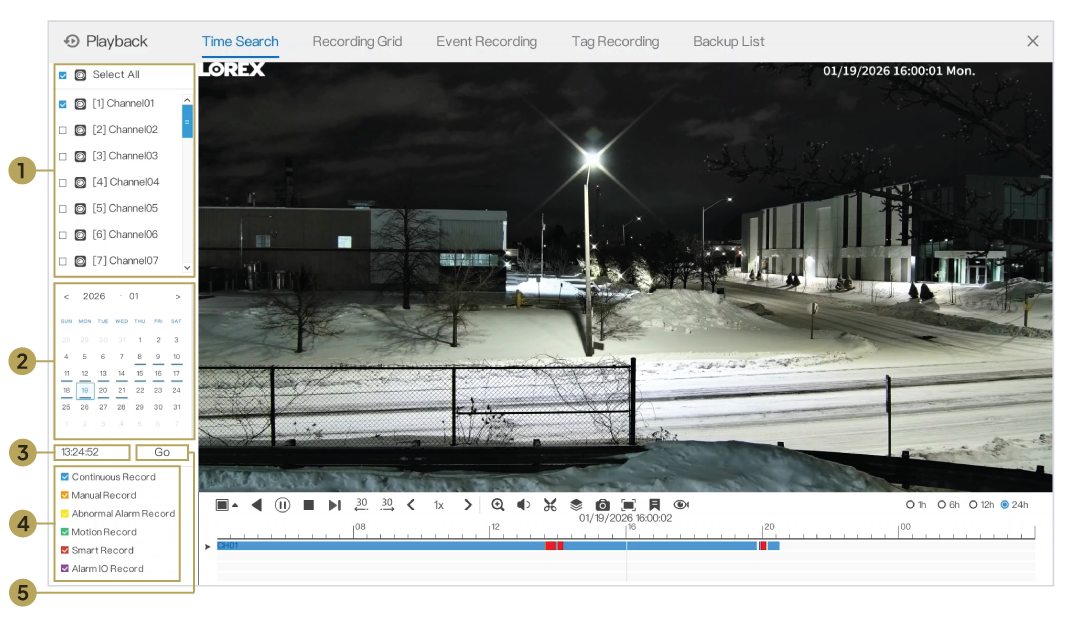
- To review footage, open Main Menu > Playback.
- Select the camera channel and desired date, then locate the recording.
Helpful Tips
- Test the Mini PTZ with the compatible NVR before permanent installation.
- Verify that the mounting location allows the camera to pan, tilt, and zoom without obstruction.
- Save important viewing positions as PTZ presets before configuring Auto Tracking or IVS PTZ linkage.
- Use descriptive preset names such as Entrance, Loading Bay, or Parking Area.
- Install the included weather-resistant RJ45 cable gland when Ethernet connections may be exposed to moisture.
- Keep the microSD/reset compartment securely closed after inserting a card or performing a reset.
- When troubleshooting camera movement, stop active automated PTZ functions before testing manual control.
- For advanced camera settings and NVR procedures, refer to the Mini PTZ Instruction Manual and compatible NVR User Manual.
Explore Lorex Connect App Guides
For additional instructions on remote live viewing, recorder playback, and notifications, refer to the Lorex Connect app guides.
To view the Mini PTZ remotely, add the compatible NVR to the Lorex Connect app.
- Getting Started & Home
- Live View & Playback
- Device Settings
- Recorder Settings
- Motion & AI Detection (Motion Zones, Sensitivity & Alerts)
- Events
- Shared Users
- App Settings
- Snapshots & Recordings
- FAQ & Troubleshooting