


This guide provides step-by-step instructions for installing your N920 Recorder.
What is included:
N920 Recorder:
- N920 Recorder
- Power adapter with power cable
- SATA cable
- 3 foot / 0.91 meter Ethernet cable
- HDMI Cable
- USB mouse
Connect your Wired Camera:
Connect your camera directly to your recorder using the camera’s Ethernet extension cable.

Setup your Recorder:
- Connect your recorder to your Wi-Fi router using the included Ethernet cable.

- Connect the included USB mouse to the USB port on your recorder. To copy events or to perform a firmware update, connect a USB flash drive.

- Connect your recorder to your TV using the included HDMI cable. The HDMI supports up to 4K resolution and VGA supports up to 1080p.

- Connect the included power adapter to your recorder and a power outlet. Complete the Lorex Setup Wizard and select Network Setup when prompted.

Download the Lorex App:
To enable remote viewing, ensure that you:
- Have high-speed Internet
- Have an upload speed of 6 Mbps for one 4K+ channel and at least 24 Mbps for the whole system
- Locate your recorder’s Device ID QR code
To connect your recorder to the app:
- Download the Lorex App from the App Store or Google Play.

- Open the app and create an account.
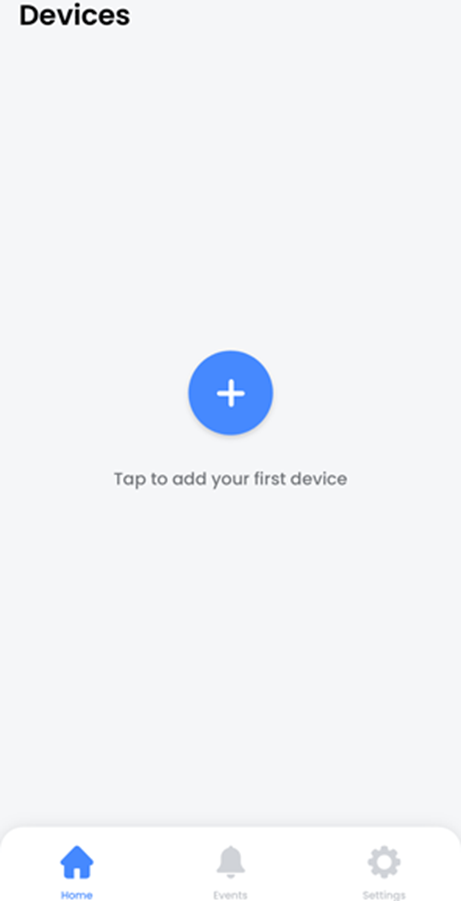
- Tap the add (+) icon to connect your Lorex recorder.
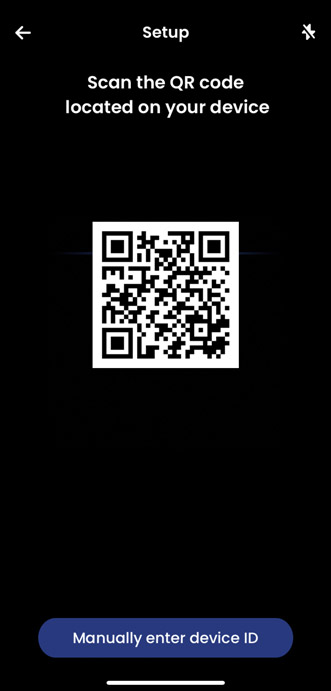
- Scan your recorder's QR code. The device QR Code is located on your recorder alongside the Device ID, which can also be accessed from your recorder by pressing the Info button.
- Follow the in-app steps to complete the recorder setup.
Connecting your Fusion Wi-Fi Camera
Ensure your Fusion Wi-Fi camera and recorder are connected to the same Lorex Home app account and network.
- Turn your Fusion Wi-Fi camera on.
- Open the Lorex app.
- Tap the (+) icon.
- From your recorder’s Live View, click on a channel (+) .
- Click Device Search.
- Double-click your Fusion Wi-Fi camera.
- Enter your Fusion Wi-Fi camera’s password created in-app.
- Give your Wi-Fi camera a few minutes to establish a connection.
Note: You can add up to 8 Lorex Fusion Wi-Fi devices.