
IC101 Series - 2K Indoor Wi-Fi Camera: Installation Guide
Installation GuidesThis article provides instructions for installing the IC101 2K Indoor Wi-Fi Camera.
Note: The screenshots in this guide are for illustration purposes only. The look of the Lorex Connect app may vary slightly depending on your device, app version, or operating system.
What's Included:
- 2K Indoor Wi-Fi Camera
- Mounting Bracket
- Power Cable
- Power Adapter
- Screws and Anchors (3x)
- Adhesive Mount
- Magnetic Mount
- Mounting Sticker
Adhesive Mounting:
Adhesive mounting is a method of mounting your camera to a wall or surface with an adhesive sticker. It is not easy to remove but will not require you to drill screws and anchors into your desired mounting surface.
- Slide your mounting bracket into your camera, and angle the mount.
Note: If you want to angle your camera 90° from your mounting surface, you must only slide your mounting bracket to the first lock. Otherwise, slide your camera mount all the way in.
- Insert the power cable into your camera to ensure you have room to mount your camera properly.
- Remove one side of your adhesive mount and place it on the desired surface.
- Remove the other side of the adhesive mount and place your camera.
- Plug the power supply block into the wall, and the power cable into the block.
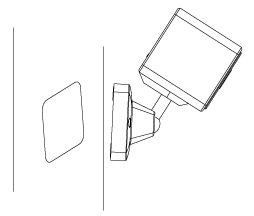
- Onboard your camera using the instructions below.
Magnetic Mounting:
Magnetic mounting is a good way to mount your camera to a magnetic surface, so your camera can be moved often. You can also use a magnetic mount to adhere your camera to a non magnetic surface, while keeping the ability to remove your camera quickly.
- Slide your mounting bracket into your camera, and angle the mount.
Note: If you want to angle your camera 90° from your mounting surface, you must only slide your mounting bracket to the first lock. Otherwise, slide your camera mount all the way in.
- Insert the power cable into your camera to ensure you have room to mount your camera properly.
- (Not required if you're mounting on a magnetic surface) Insert an anchor into your desired surface and screw your magnetic mount into place.
- Place your camera on your magnetic surface / mount.
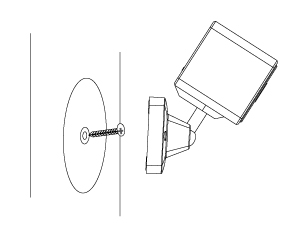
- Onboard your camera using the instructions below.
Classic Mounting
This method of mounting is most common and requires you to screw your camera into the mounting surface. This is the best method to use if you do not want your camera moved, and you have the ability to drill holes in your mounting surface.
- Slide your mounting bracket into your camera, and angle the mount.
Note: If you want to angle your camera 90° from your mounting surface, you must only slide your mounting bracket to the first lock. Otherwise, slide your camera mount all the way in.
- Insert the power cable into your camera to ensure you have room to mount your camera properly.
- Place your mounting stickers, use it to drill two anchor holes, and insert anchors.
- Use a screwdriver and included screws to secure your camera into your mounting surface.
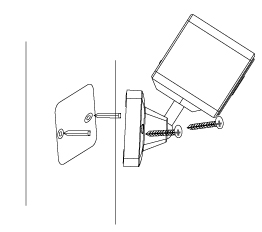
- Onboard your camera using the instructions below.
Onboarding:
Onboarding your camera will connect it to your phone via the Lorex Connect App so that you can control settings and view the recordings.
- Launch the Lorex Connect App. In the top right corner of the My Home tab, tap the
 icon.
icon. - If you have an IOS device, tap Add a device. For Android devices, your app will skip this step for you.
- In the list of devices, tap your IC101 camera.
- Scroll through the instructions, and tap Continue > Add this device.
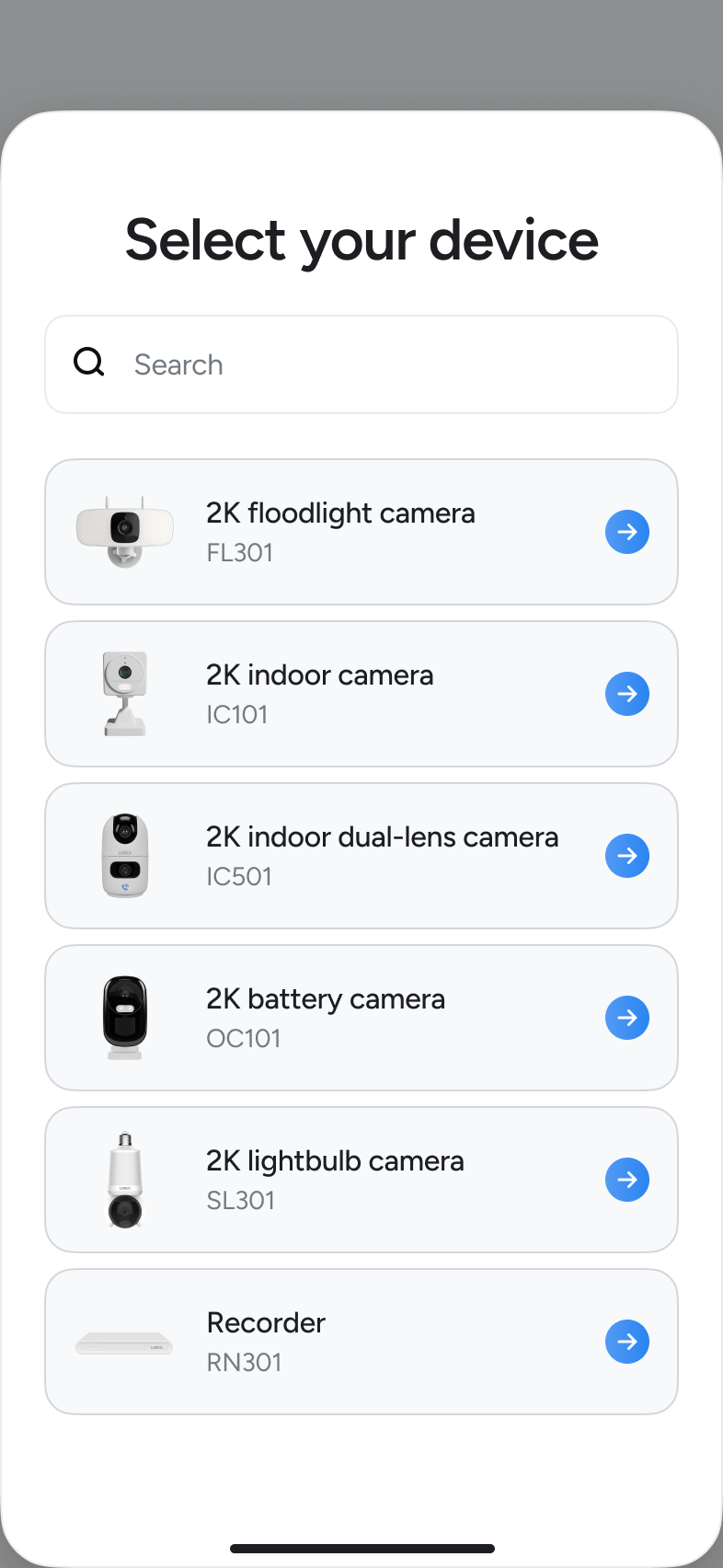
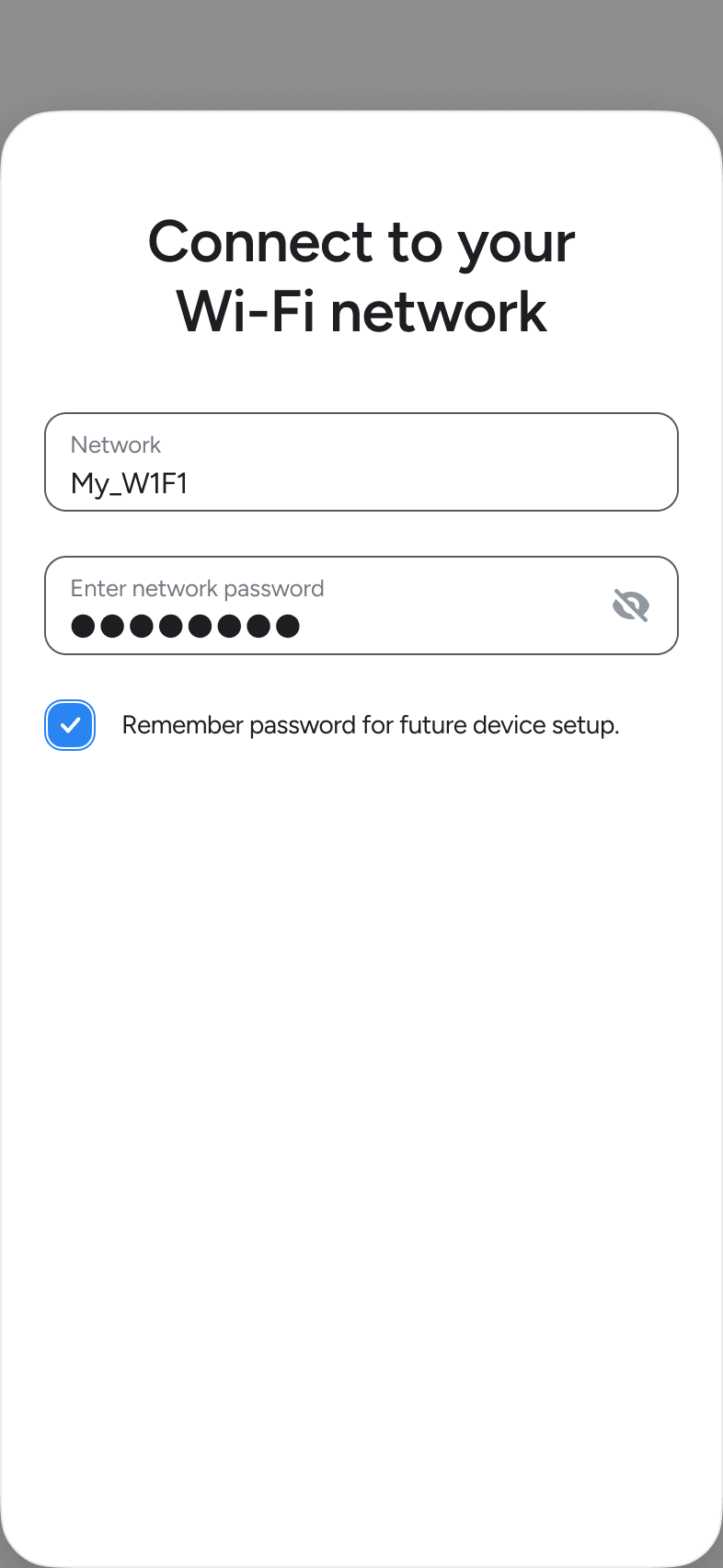
- Choose your Wi-Fi from the list of networks or tap Rescan again.
- Input your Wi-Fi password and tap Continue.
- Name your camera and tap Continue.
- Sign up for Lorex Cloud or skip this step.
- Choose if you would like to add image previews.
- Choose if you would like to enable audio recording.
- Finish onboarding and tap Let's Go!
- Once you onboard your device you must set the time. Tap your camera's thumbnail >
 Icon > Camera Settings > Time Settings > and select your time zone.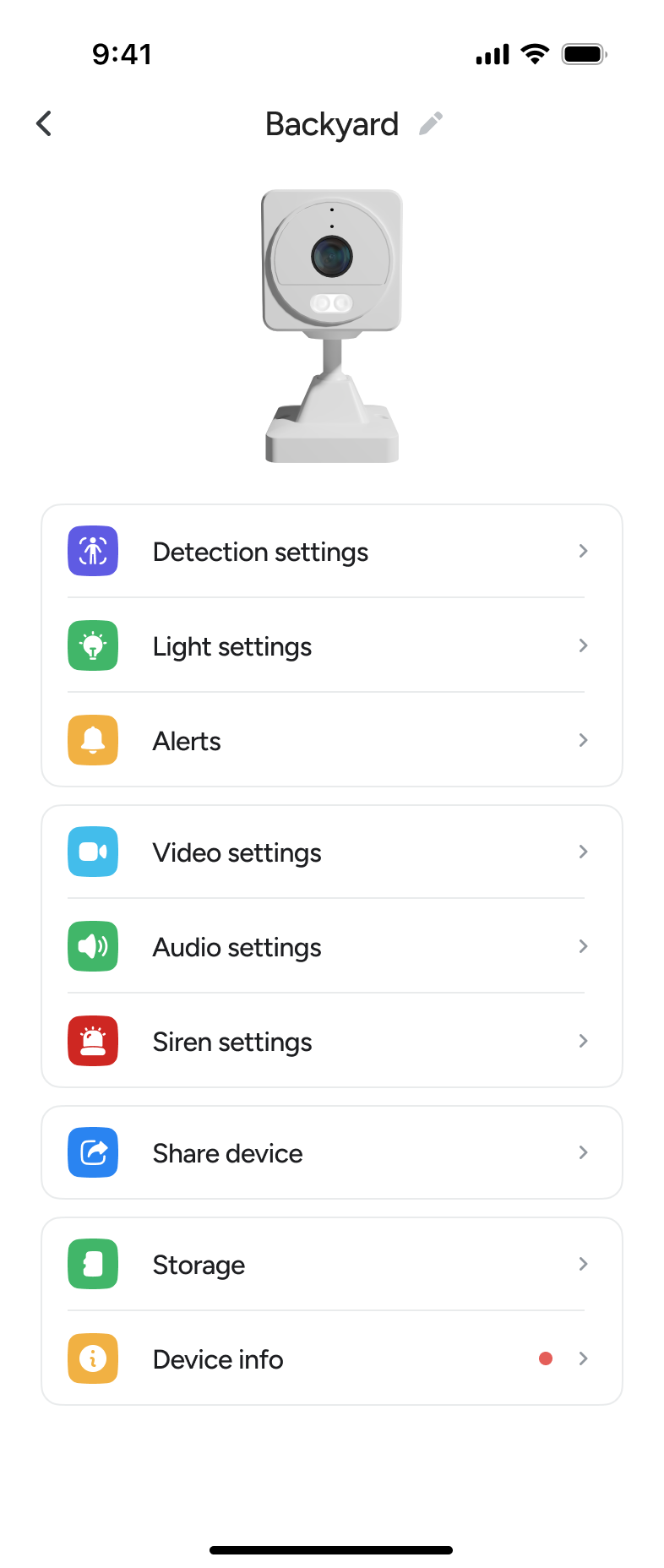
- Tap Save to confirm.
FCC Statement
This equipment has been tested and found to comply with the limits for a Class B digital device, pursuant to part 15 of the FCC rules. These limits are designed to provide reasonable protection against harmful interference in a residential installation. This equipment generates, uses and can radiate radio frequency energy and, if not installed and used in accordance with the instructions, may cause harmful interference to radio communications. However, there is no guarantee that interference will not occur in a particular installation. If this equipment does cause harmful interference to radio or television reception, which can be determined by turning the equipment off and on, the user is encouraged to try to correct the interference by one or more of the following measures: - Reorient or relocate the receiving antenna. - Increase the separation between the equipment and receiver. - Connect the equipment into an outlet on a circuit different from that to which the receiver is connected. - Consult the dealer or an experienced radio/TV technician for help. To assure continued compliance, any changes or modifications not expressly approved by the party responsible for compliance could void the user’s authority to operate this equipment. This equipment complies with Part 15 of the FCC Rules. Operation is subject to the following two conditions: 1. This device may not cause harmful interference, and 2. This device must accept any interference received, including interference that may cause undesired operation. FCC Radiation Exposure Statement: This equipment complies with FCC radiation exposure limits set forth for an uncontrolled environment. This equipment should be installed and operated with a minimum distance of 20cm between the radiator and your body.
(ISED Canada) Statement
The device for operation in the band 5150-5250 MHz is only for indoor use to reduce the potential for harmful interference to cochannel mobile satellite systems.
This device contains licence-exempt transmitter(s)/receiver(s) that comply with Innovation, Science and Economic Development Canada’s licence-exempt RSS(s). Operation is subject to the following two conditions: 1. This device may not cause interference. 2. This device must accept any interference, including interference that may cause undesired operation of the device. This device meets the exemption from the routine evaluation limits in section 6.3 of RSS-102 and complies with RSS-102 RF exposure requirements. Users can obtain Canadian information on RF exposure and compliance.
This equipment complies with Canada radiation exposure limits set forth for an uncontrolled environment. This equipment should be installed and operated with a minimum distance of 20 cm between the radiator and your body.
L'appareil destiné à fonctionner dans la bande 5150-5250 MHz est uniquement destiné à une utilisation en intérieur afin de réduire le potentield'interférences nuisibles aux systèmes mobiles par satellite cocanaux.
Cet appareil contient des émetteurs/récepteurs exempts de licence qui sont conformes aux CNR exempts de licence d’Innovation, Sciences et Développement économique Canada. Le fonctionnement est soumis aux deux conditions suivantes : 1. Cet appareil ne doit pas causer d’interférences. 2. Cet appareil doit accepter toute interférence, y compris les interférences susceptibles de provoquer un fonctionnement indésirable de l’appareil. Cet appareil est conforme à l'exemption des limites d'évaluation courante dans la section 5.3.2 du CNR-102 et conforme à l'exposition aux RF selon le RSS-102. Les utilisateurs peuvent obtenir des données canadiennes sur l'exposition aux champs RF et la conformité. Cet équipement est conforme aux limites d'exposition aux radiations du Canada dans un environnement non contrôlé. Cet équipement doit être installé et utilisé avec une distance minimale de 20 cm entre le radiateur et votre corps.
Hardware Version Identification Numbers (HVINs):
IC101A-PCW-AZ1: 2K Indoor Wi-Fi Camera with card slot
IC101C-PCW-AZ1: 2K Indoor Wi-Fi Camera without card slot